Docs
Workspace home
The post-login app catalog: hero, search and filters, app cards and their actions, groups, quick actions, the create-app dialog and the app documentation viewer.
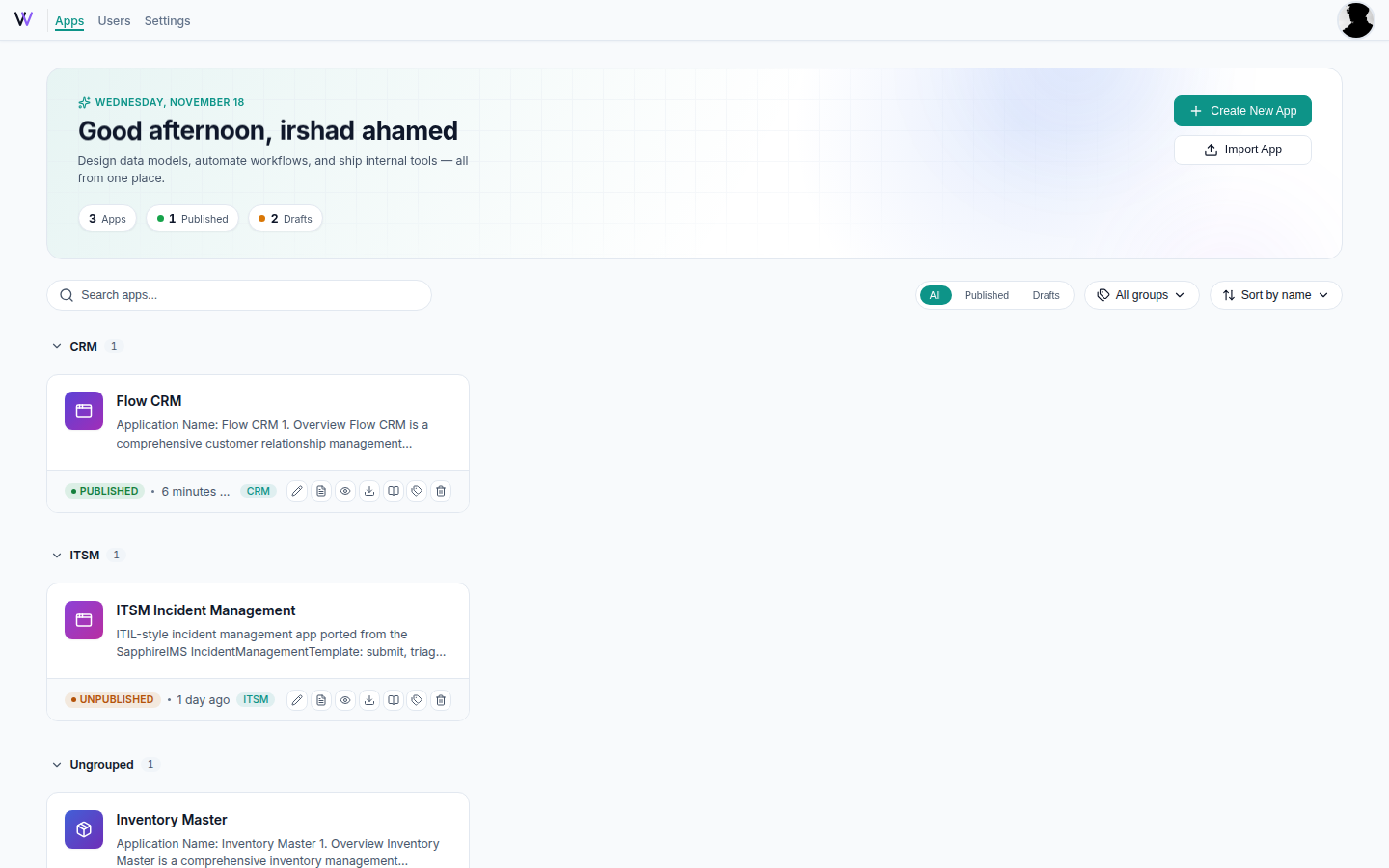
Workspace home is the page builders and app users land on after sign-in — the catalog of every app in the workspace, plus the entry points for creating, importing and managing them. Builders see the full management surface; app users see a read-only catalog of the apps published to them.
Welcome hero
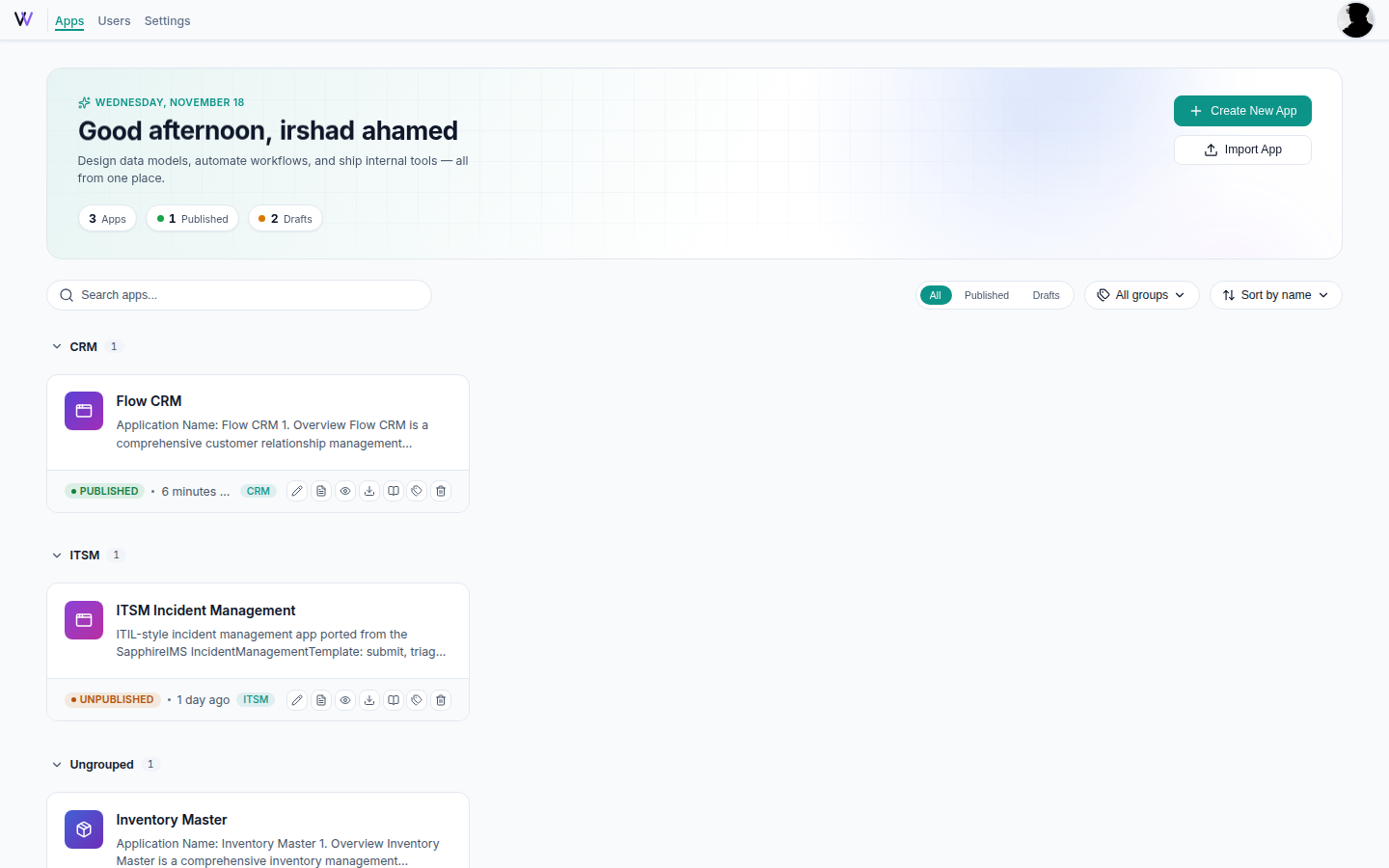
| Date line | Today's date (e.g. "Tuesday, November 17"), for orientation only. |
| Greeting | "Good morning/afternoon/evening, {your name}" — the name appears highlighted. |
| Subtitle | Builders see "Design data models, automate workflows, and ship internal tools — all from one place." App users see "Jump back into your published apps below." |
| Stat chips | Builders only, once apps exist: N Apps (total), N Published (green dot), N Drafts (amber dot). |
| Create New App | Opens the create-app dialog (builders only). |
| Import App | Opens a file picker for a .json app export and starts the guided import (builders only). |
Toolbar — search, filter, sort
Shown to builders only, directly under the hero.
| Search apps | Live text filter over app names; an × inside the field clears it. No match shows the empty state ("No apps match …"). |
| Status chips | All · Published · Drafts — single-select filter; an animated indicator marks the active chip. "Drafts" means apps whose status is Unpublished. |
| Group dropdown | All groups, then one entry per group you created, then Ungrouped. Groups are your own labels for organizing the catalog (see card actions). |
| Sort dropdown | Sort by name (default) · Sort by recently updated · Sort by status. |
The app list
Apps render as cards, grouped into collapsible sections when groups exist — each section header shows the group name, its app count and a chevron to collapse it. Apps without a group sit under Ungrouped.
Anatomy of an app card
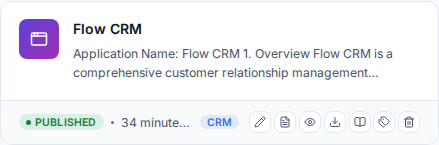
| Icon | Auto-picked from the app name — keywords like inventory → box, hr/employee → people, form/survey → document, dashboard/report → chart, calendar/booking → calendar, mail/chat → envelope, task/kanban → board, ai/bot → bot, else a generic window. The gradient is generated from the name so each app is visually distinct. |
| Name | App title. Click the pencil action to rename inline (Enter saves, Esc cancels). |
| Description | Truncated to two lines, or "No description". Click the document action to edit inline. |
| Status pill | Published (green) or Unpublished (amber). Builders click the pill itself to toggle — publishing makes the app visible to app users. |
| Updated time | Relative ("34 minutes ago"), or "Never updated". |
| Group chips | Up to two of the app's groups, then "+N" for the rest. |
Action buttons (builders only, left to right):
| Rename (pencil) | Inline-edit the app name. |
| Edit description (document) | Inline-edit the description. |
| Preview (eye) | Opens the running app in a new browser tab — what app users see. |
| Export (download) | Downloads the full app as {name}-export.json — data tables, pages, flows, workflows, roles, menu. This is the file Import App consumes. |
| Documentation (book) | Opens the app documentation viewer. |
| Manage groups (tags) | Popover to check/uncheck the app's groups or type a new group name to create one. |
| Delete (trash) | Opens a confirmation dialog before removing the app. |
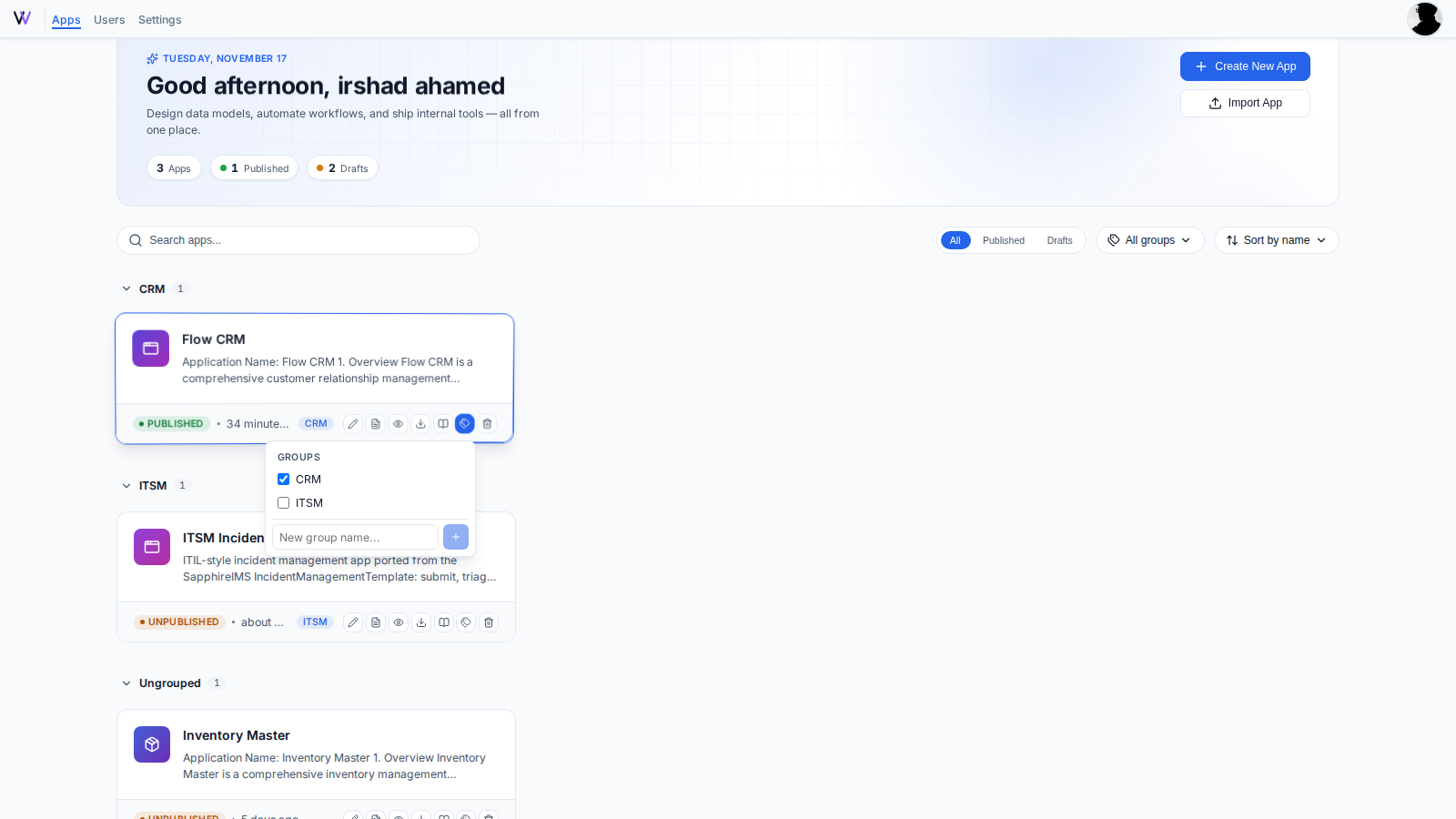
Clicking the card itself: builders go to the app's Data Master; app users open the running app in a new tab.
Quick Actions

Three shortcut cards shown to builders below the app list:
- Import App — same as the hero button: pick a
.jsonexport and the import runs as a step checklist (reading, validating, then importing data sources, AI tools, flows, pages, menu, roles and workflows in order). - Import Users — bulk-add users from a
.csvfile. - Settings — jump to account settings (authentication, branding and more).
Activation checklist

For builders who haven't finished onboarding, the checklist "Get your app to first use" tracks five steps — Create your first app · Add a form · Add a list page · Preview your app · Invite a teammate — with a running "N of 5" count. Finished steps show their result (e.g. the app or form name); unfinished ones get an action link (Open preview, App settings). It disappears once everything is done and can be dismissed with ×.
Empty state
With no apps to show, the page falls back to a short message that depends on context: "No apps match '{search}'…" after a filtered search, "No published apps are available for you yet…" for app users, and a create-your-first-app prompt for builders.
The Create New App dialog
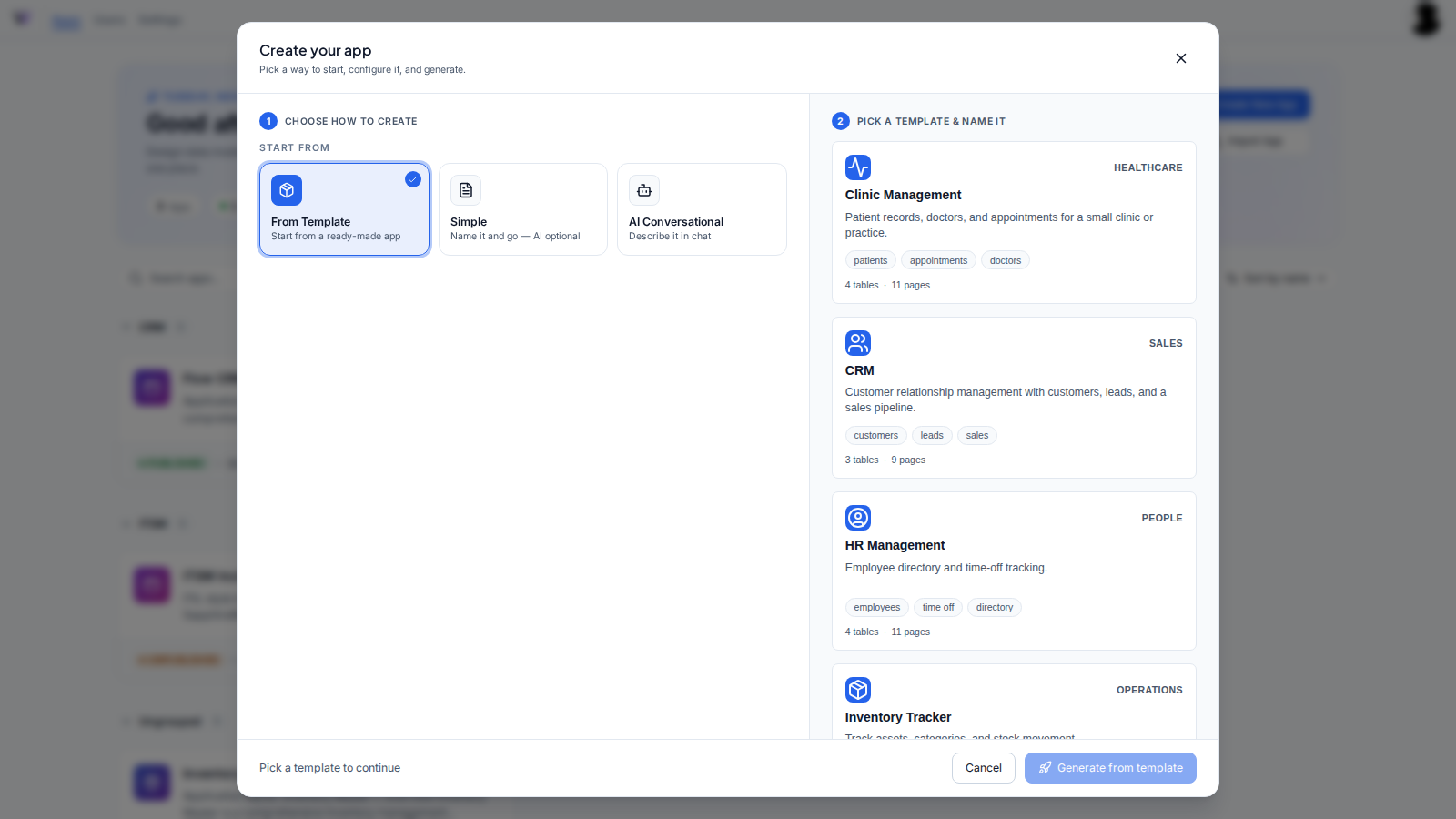
Two steps: pick how to create, then configure. The three modes:
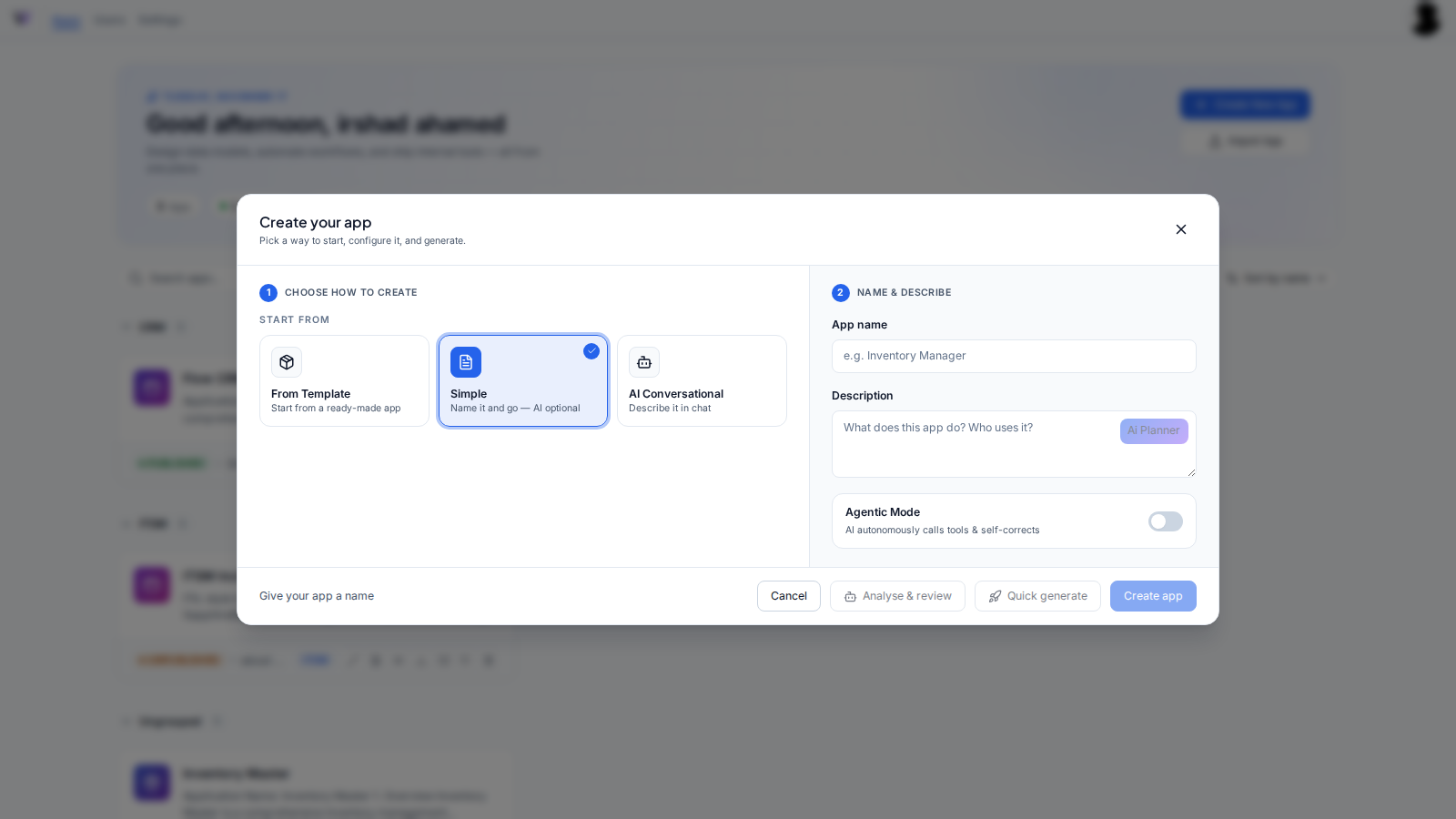
| From Template | Start from a ready-made app. The gallery lists templates (Clinic Management, CRM, HR Management, Inventory Tracker…), each with a category tag, description, entity chips and a "N tables · N pages" size hint. Pick one, name it, then Generate from template. |
| Simple | Name it and go — AI optional. App name (60 chars max) and a Description textarea; the Ai Planner button drafts the description for you. Footer: Analyse & review (AI drafts the app spec for review before building), Quick generate, or Create app (build it exactly as described). |
| AI Conversational | Describe it in chat — an AI builder asks questions to refine requirements before generating. The pane shows the assistant's greeting, a message box ("Shift+Enter for new line") and Send; footer: Review spec and Generate app. |
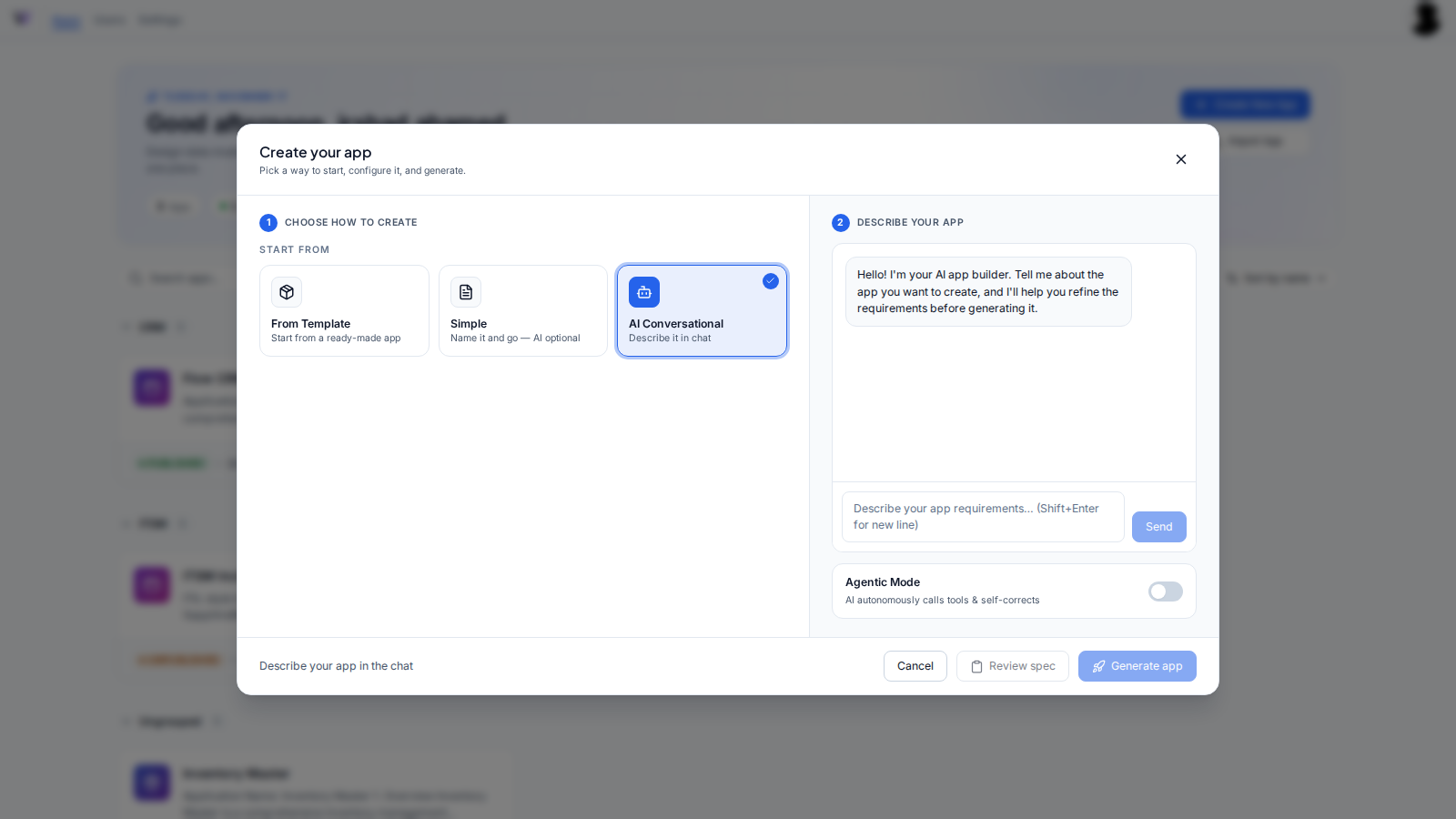
Every mode also shows the Agentic Mode toggle — "AI autonomously calls tools & self-corrects" — which makes generation run as an agent that plans, executes and fixes its own work instead of a single-pass generation (see AI agents & tools). While a generation runs, an overlay reports progress stage by stage.
App documentation viewer
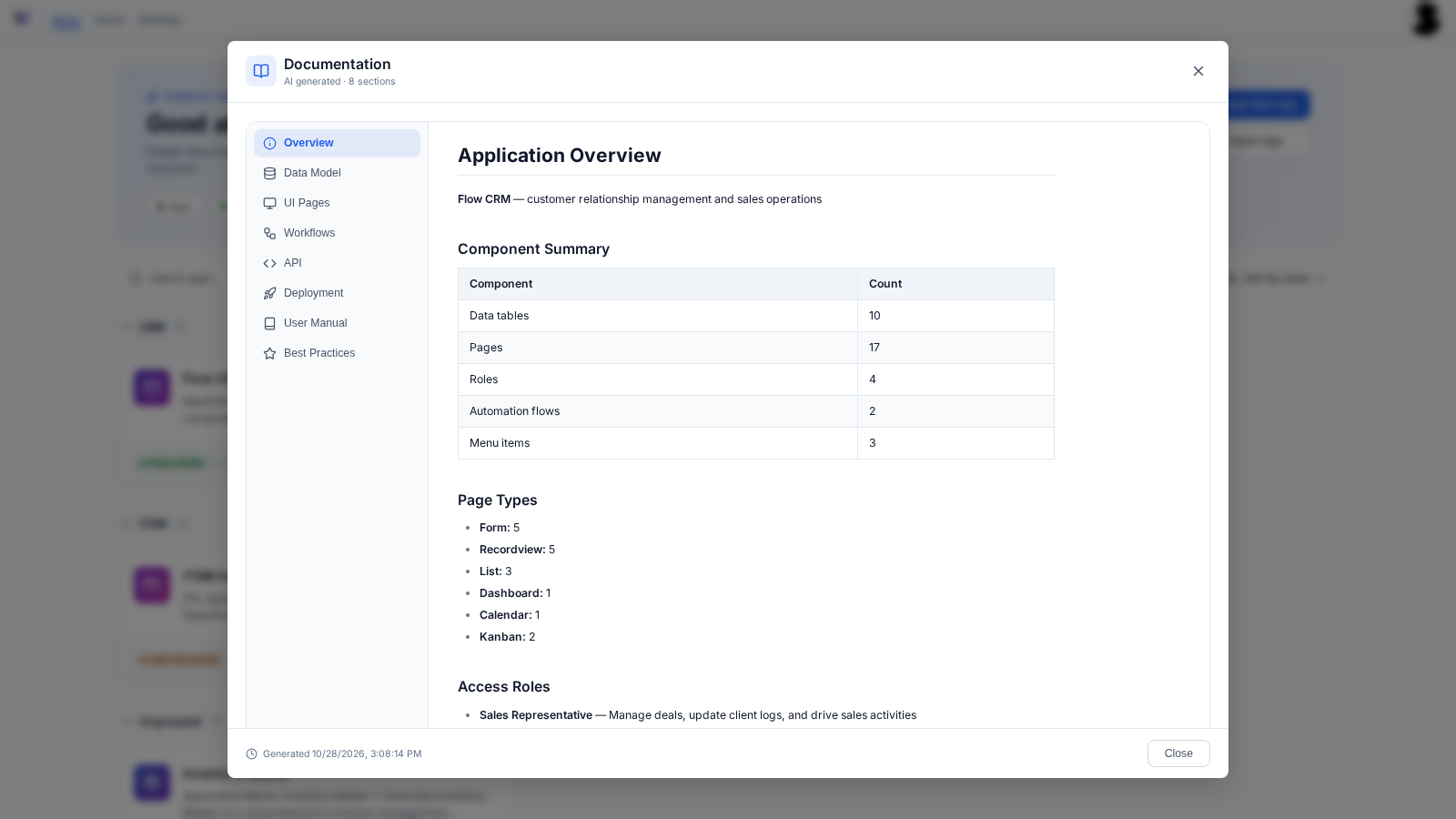
The card's Documentation action opens an AI-generated reference for that app — sections for Overview, Data Model, UI Pages, Workflows, API, Deployment, User Manual and Best Practices. The overview tab summarizes the app's size (data tables, pages, roles, flows, menu items), breaks pages down by type (forms, record views, lists, dashboards…), and lists its access roles, with the generation timestamp in the footer. Useful for onboarding teammates or auditing what a generated app actually contains.
What app users see instead
| Catalog | Only apps published to them; no stat chips, toolbar, Create/Import buttons, card actions or Quick Actions. |
| Cards | Read-only — clicking opens the running app in a new tab; no inline editing, status toggle, export or delete. |
| Empty state | "No published apps are available for you yet. Please check back later." |