Docs
Security & access
Sign-in methods, MFA setup, password and session policy, OAuth providers, enterprise SSO and privacy settings.
This page covers how people sign in to your workspace and app, how you enforce stronger authentication, and the security-related settings an administrator controls. It documents what you see in the UI — for the underlying platform architecture see your deployment documentation.
Sign-in methods
Depending on what your administrator has enabled, the login screen offers:
- Email + password — the default. New users set a password from their invitation email; existing users can use Forgot password to receive a reset link.
- Google / Microsoft sign-in — one-click OAuth buttons appear when the workspace has the provider configured (Settings → OAuth Settings, or the tenant's Integrations settings).
- Enterprise SSO — a Continue with SSO option appears once OIDC or SAML is configured for the tenant (Enterprise plan). Users authenticate at your identity provider and land in the app without a local password.
Multi-factor authentication (MFA)
Users can protect their own account from their profile page:
- Open your profile and find the Two-factor authentication section.
- Choose Set up authenticator app and scan the QR code with any TOTP app (Google Authenticator, Authy, 1Password…).
- Enter the 6-digit code to confirm, then save the recovery codes somewhere safe — each can be used once if you lose the device.
- The section shows an Enabled state and how many recovery codes remain; you can regenerate them or turn MFA off (you'll need a current code).
If your workspace requires MFA, the profile shows a required by workspace notice and you can't dismiss the setup until it's done. Administrators enable that requirement in the workspace's security settings — the same panel shows enrollment progress (enrolled of total users) so you can see who's still outstanding.
Two enforcement details worth knowing: users who sign in with Google are asked to complete MFA setup at their next sign-in if they haven't enrolled, and MFA codes expire quickly — if a code is rejected as stale, wait for the next 30-second window and try again.
Password & session policy
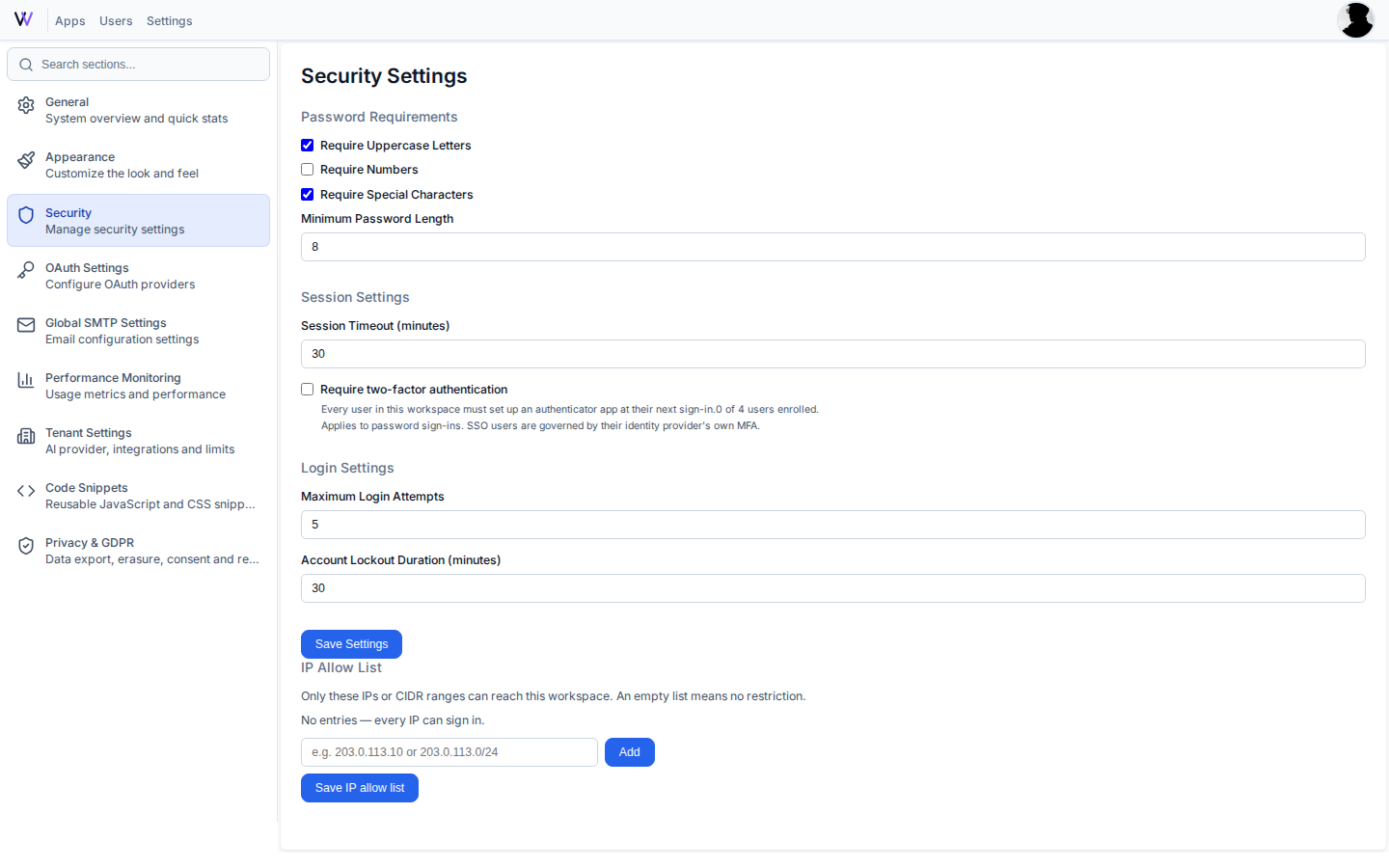
Workspace and app security settings (Settings → Security, visible to admins) control:
| Setting | What it controls |
|---|---|
| Password requirements | Minimum password length enforced on new passwords and resets. |
| Session timeout | How long a signed-in session stays valid before the user must log in again. |
| Max login attempts | Failed sign-in attempts before the account locks. |
| Lockout duration | How long a locked account stays locked before it can be retried. |
These apply to password sign-ins; SSO users authenticate at your identity provider instead.
IP allow list
Admins can restrict which networks reach the workspace: Settings → Security → IP Allow List accepts IP addresses or CIDR ranges (e.g. 203.0.113.0/24 for an office network). With entries saved, only matching IPs can sign in; with none, every IP can. Saving a list that would lock out your own address shows a warning with your current IP and an Add it now shortcut, so you don't lock yourself out by accident.
Social sign-in setup
To offer Google or Microsoft sign-in, an admin configures the provider's OAuth app credentials in settings (client ID and secret from the provider's developer console), then enables the provider. Once saved, the login screen shows the matching button. Microsoft 365 / Google Workspace directory features (user sync, mail, calendar) use the tenant's Integrations settings instead — see the next section.
Enterprise SSO (OIDC & SAML)
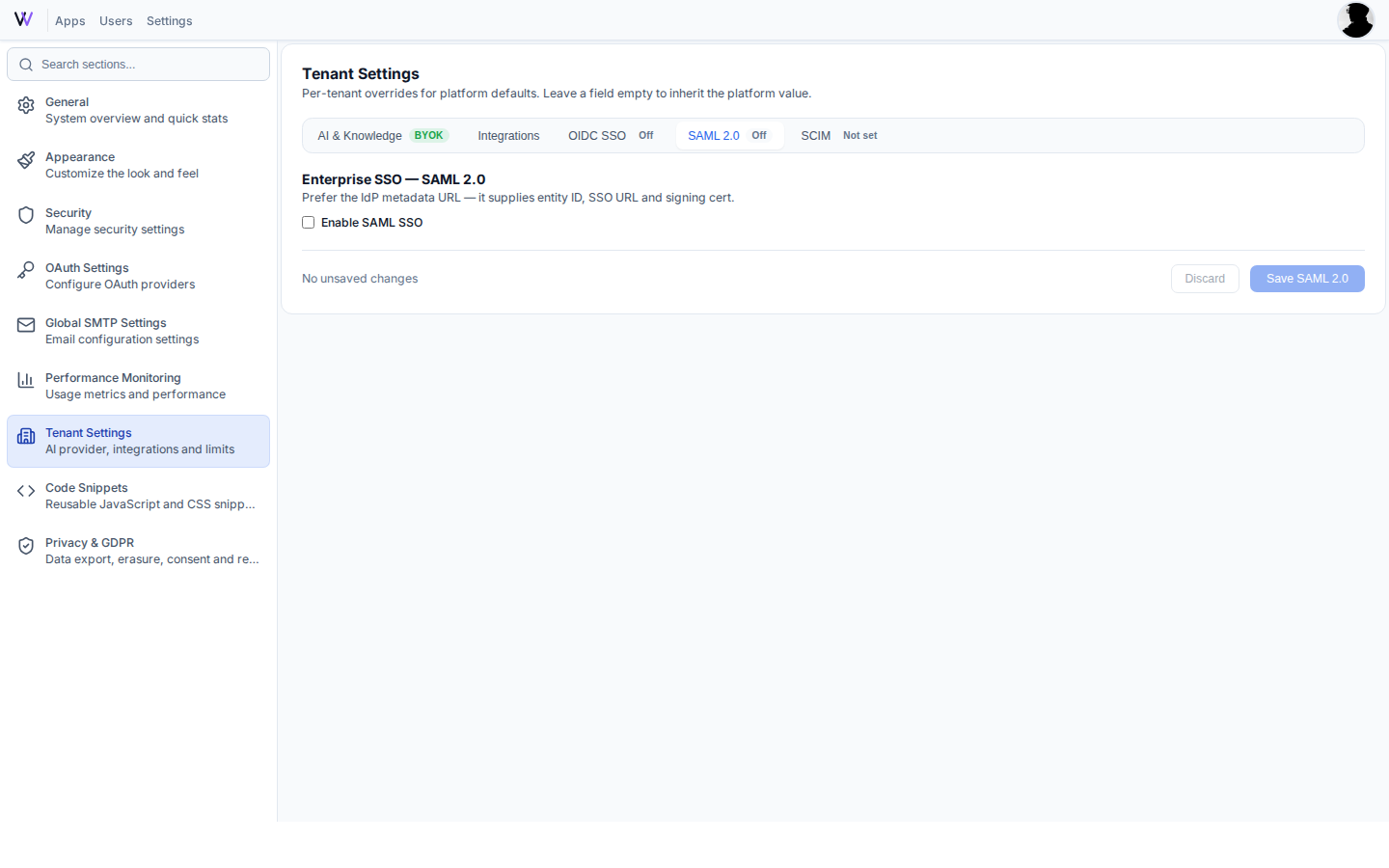
For workspaces on the Enterprise plan, tenant settings include single sign-on tabs:
OIDC (OpenID Connect)
Point Workcraft at your identity provider by filling in the issuer URI, client ID and client secret, plus the provider's authorize, token and JWKS endpoint URLs and the scopes to request. Test the connection before enabling; once active, users get the SSO login option.
SAML 2.0
Either paste your identity provider's metadata URL (it fills in the entity ID, SSO URL and certificate automatically) or enter those three values manually. Workcraft shows its own service provider entity ID and a metadata block to paste into your IdP — that's how the two sides trust each other.
SCIM provisioning
The SCIM tab provides the provisioning endpoint details and a bearer token your identity provider uses to create, update and deactivate users automatically — so joiners/leavers in your directory stay in sync without manual invites. Treat the token like a password: it's shown once and should be rotated if exposed.
Directory & app integrations
The tenant Integrations settings hold credentials for connected services:
- Azure AD / Microsoft Entra — tenant ID, client ID and client secret for Microsoft 365 features.
- Microsoft Teams bot — bot app ID, app password and tenant ID so Teams users can chat with your apps (see Chat & inboxes).
- Google — OAuth client ID plus the app name and service-account details used for Google Sheets and Gmail integrations.
Privacy & data requests
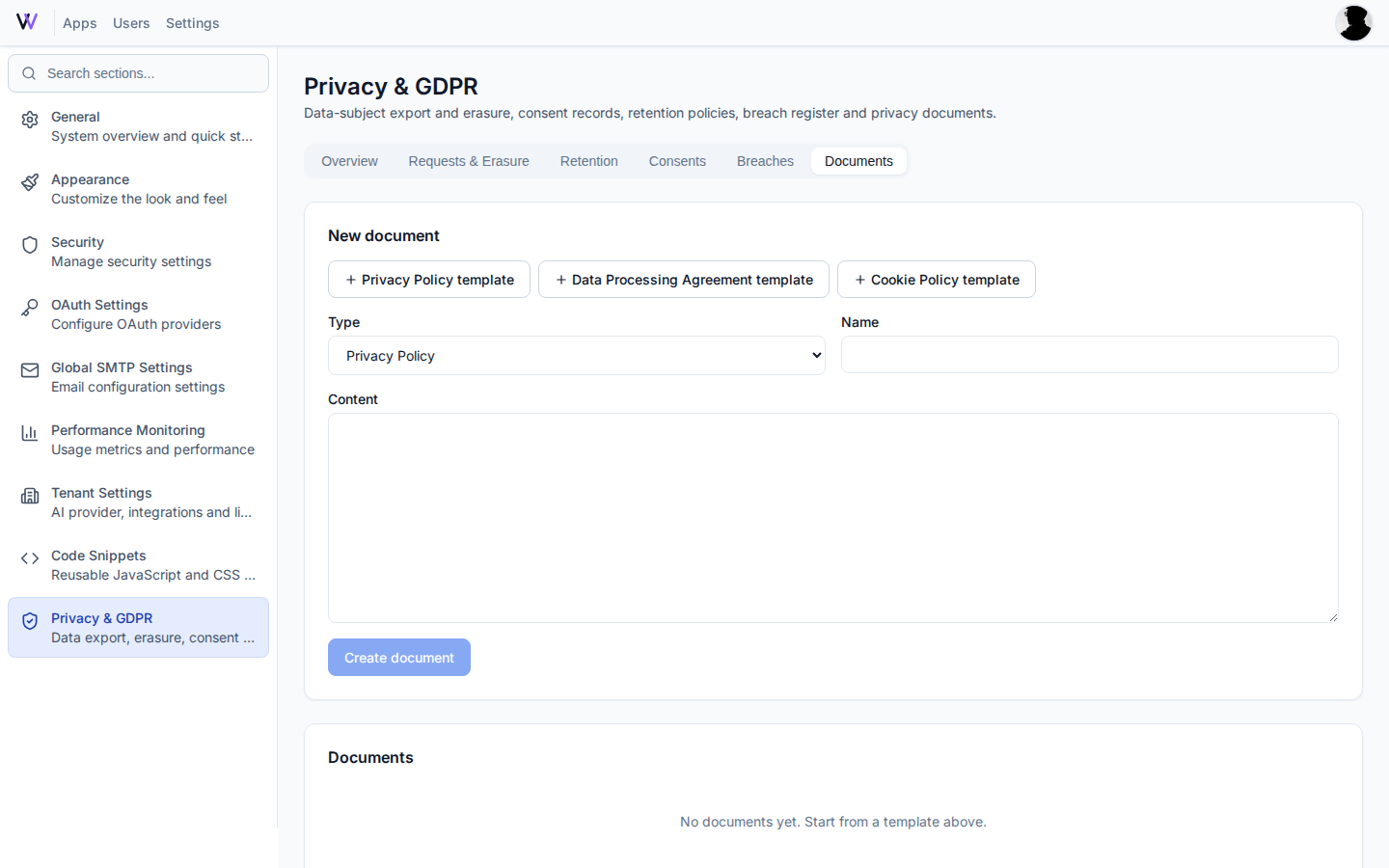
Privacy & GDPR settings (tenant admins) manage consent records by purpose, recent data-subject requests, and operations like data export and erasure for individual users. See Users & roles for who can run these.
The Documents tab manages the workspace's legal documents. Start from the Privacy Policy, Data Processing Agreement or Cookie Policy template, edit the content, and Publish — published documents carry a version number and publish date, and can be unpublished at any time.
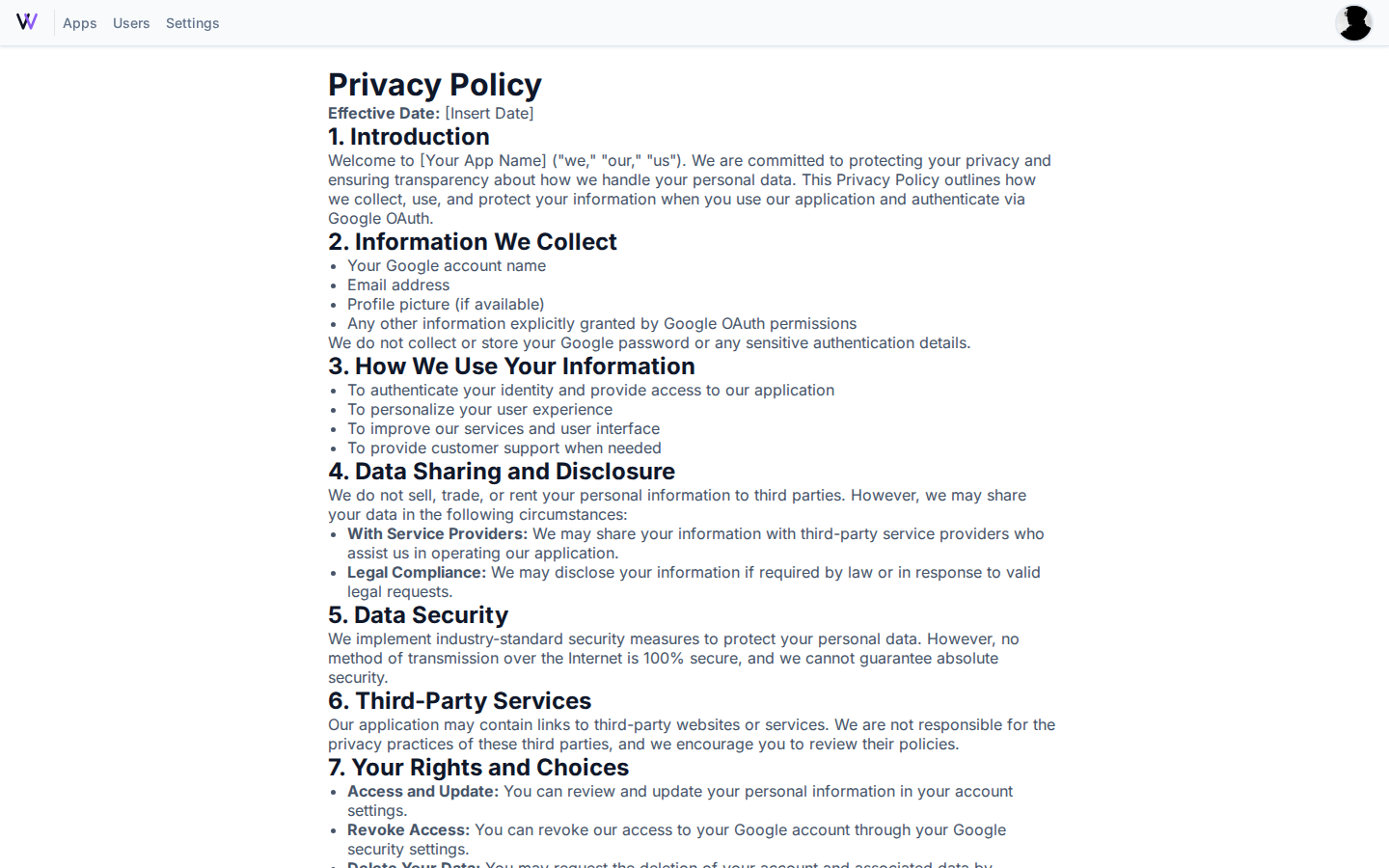
A published Privacy Policy document is rendered on the workspace's privacy policy page for signed-in users — shown with its name, publish date and version. Until a document is published, that page shows a generic default policy template.
Public surfaces
Two deliberate exceptions to login: public form links (tokenized URLs that let outsiders submit a form — see Public access) and chat widget embeds on external sites. Both are opt-in per form/widget; everything else in the app requires authentication.