Docs
MCP servers
Register external MCP servers in an app, discover their tools, expose them as AI tools and attach them to agents — the full lifecycle.
Workcraft acts as an MCP client: you register an external Model Context Protocol server inside an app, and the platform discovers the tools that server publishes — no integration code. Those tools then attach to AI agent nodes and subagents like any built-in tool. This is how agents reach company systems that already speak MCP (internal APIs, databases, browser-automation servers, ticketing) without a bespoke connector. This page covers the whole lifecycle end to end, the way the product actually does it.
Where MCP lives
Inside an app, open the top nav's AITools tab and switch to the MCP Servers tab. Server registrations are per app — the same server must be added again in another app that needs it. Each registered server shows as a card with an Active/Inactive status badge, its description, URL, protocol, discovered-tool count, and Test / Edit / Delete actions.
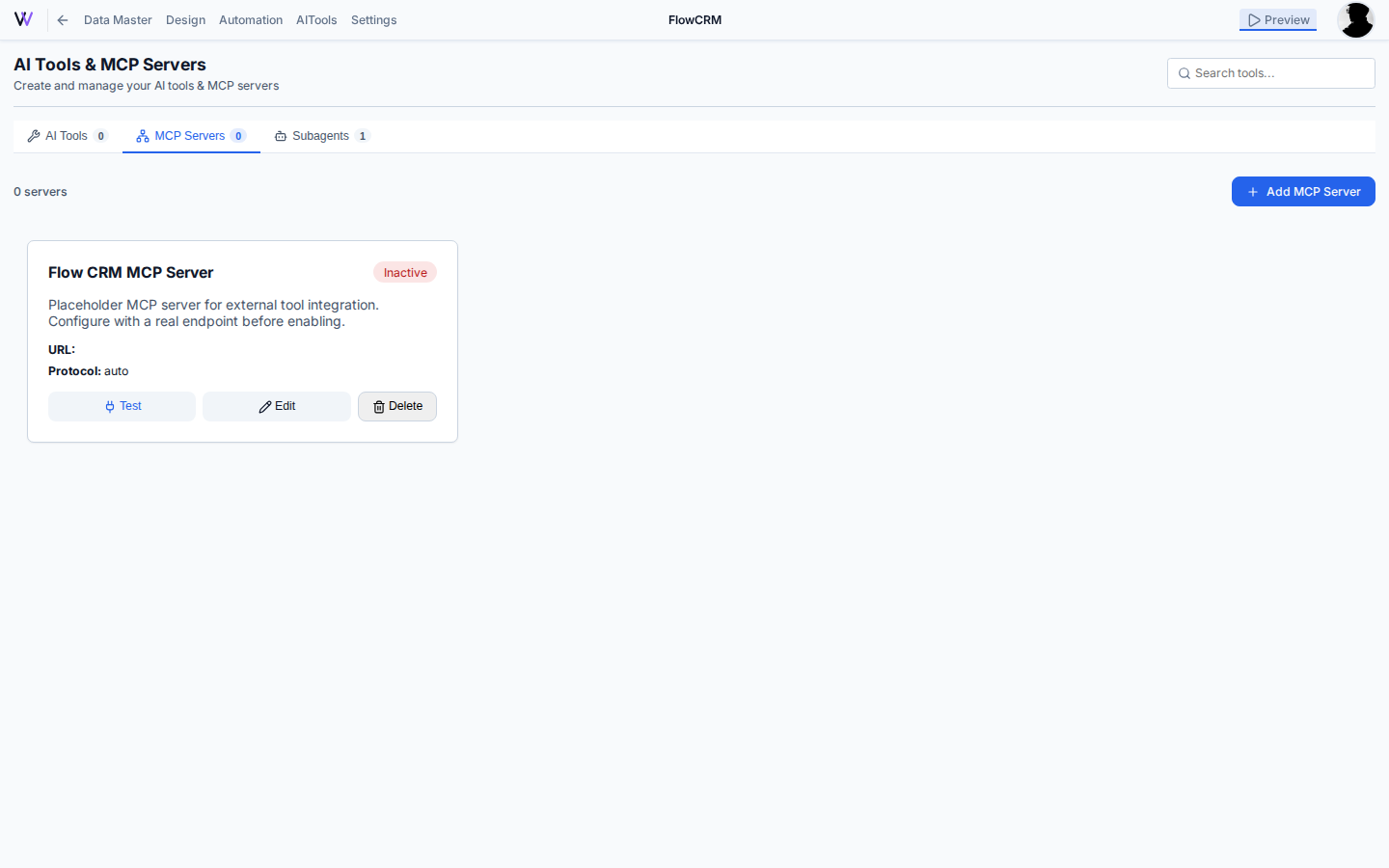
Step 1 — Register a server
Add MCP Server opens the registration form:
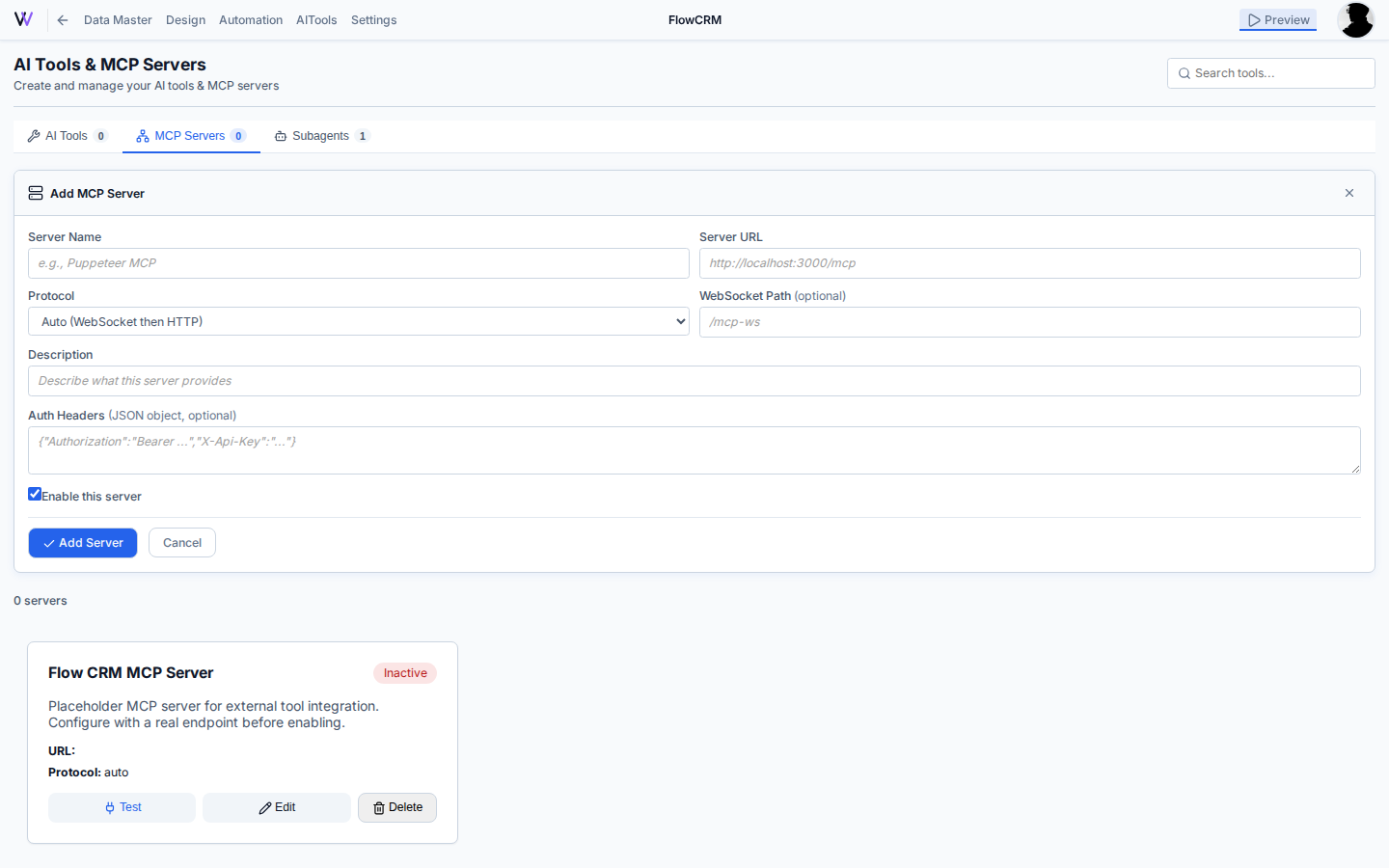
| Field | Meaning |
|---|---|
| Server Name | Display name, unique per app — a duplicate name is rejected. Used as the internal MCP client name. |
| Server URL | The server's endpoint, e.g. http://localhost:3000/mcp. Must be reachable from the Workcraft backend — on a self-hosted deployment, localhost means the server machine itself. |
| Protocol | Auto (WebSocket then HTTP) — tries a WebSocket transport first, falls back to HTTP — or pin it to WebSocket or HTTP explicitly. |
| WebSocket Path | Optional, e.g. /mcp-ws — only needed when the server exposes its WebSocket transport on a non-default path. |
| Description | What the server provides — shown on the server card. |
| Auth Headers | Optional JSON object of headers sent with every request, e.g. {"Authorization":"Bearer …","X-Api-Key":"…"}. Stored on the server record. |
| Enable this server | Gates whether the platform maintains a live connection to this server at all. |
What happens on save: the record is stored (name and URL are required; blank values are rejected). If the server is enabled, the backend connects to it and queries the tools it publishes; the discovered tool names are cached on the record and drive the count shown on the card. If discovery fails — server down, wrong URL, auth rejected — the config still saves, with an empty tool list you can refresh later. A disabled server saves but never connects.
Step 2 — Verify with Test
The Test button on a server card makes a fresh connection and lists the server's published tools — the same discovery used at save-time — and reports success or the connection error. Use it after editing URL/protocol/headers, or when a tool count looks stale. Edit reopens the same form; Delete first warns you which AI tools currently reference the server so you don't orphan them.
Step 3 — Expose a server tool as an AI tool
A registered server doesn't automatically give agents its tools — you select which ones to expose. Back on the AI Tools tab, Create AI Tool and flip the toggle to MCP Tool:
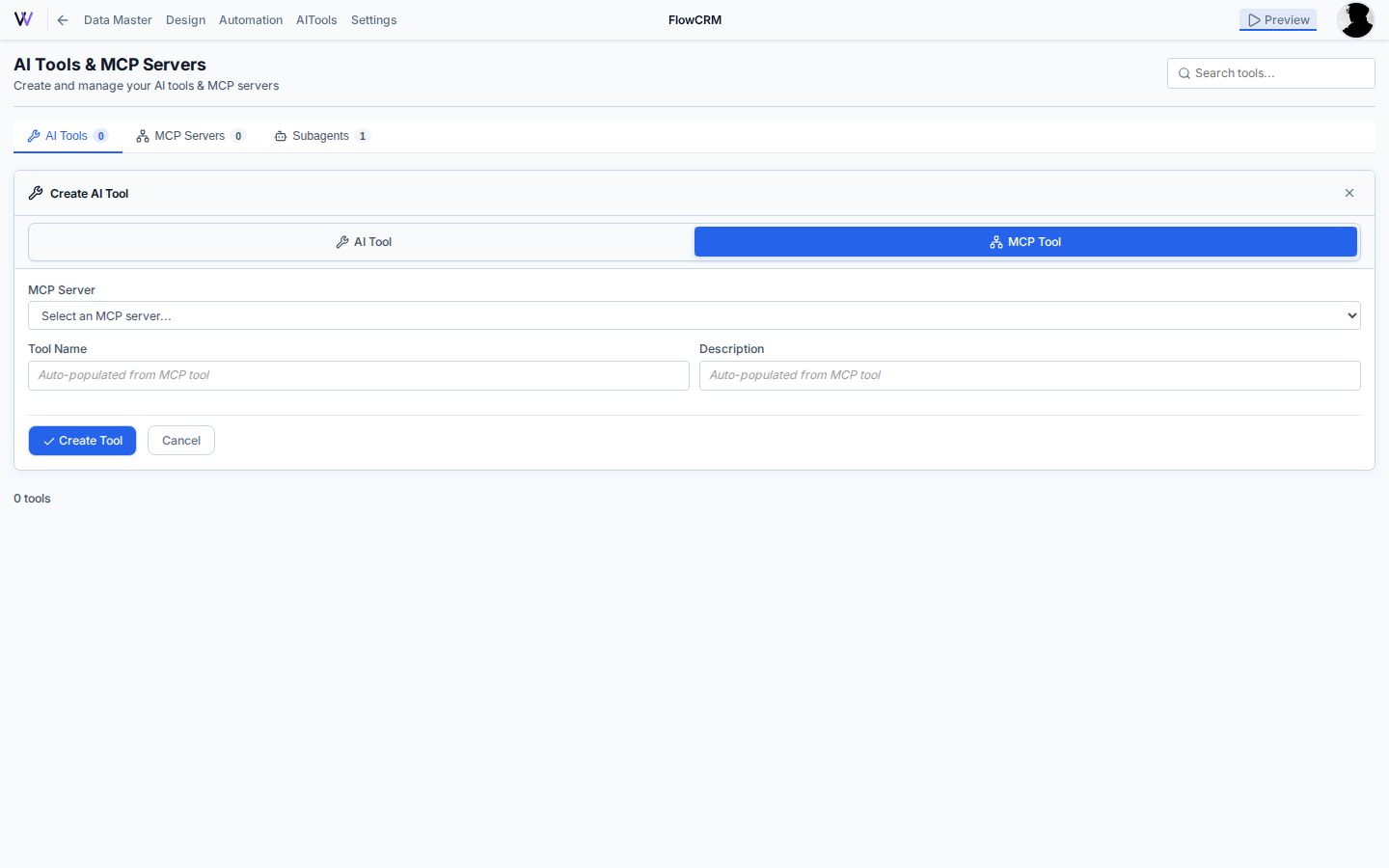
- MCP Server — pick one; the dropdown shows each server with its discovered-tool count ("name (N tools)").
- MCP Tool — a second dropdown then lists that server's live tools as name — description, fetched fresh.
- Tool Name + Description — auto-populated from the picked tool; edit if you want a friendlier name or sharper delegation hint for the agent.
Save, and the tool appears in the AI Tools list tagged with its server name. It carries the MCP tool's input schema, so the agent knows what arguments the call expects.
Step 4 — Attach it to an agent
Two attachment points, same as any AI tool:
- Agent node in a flow → Agent tools → Add tool → pick the MCP tool. The agent can then invoke it mid-automation (see AI agents & tools).
- Subagent → Attached Tools in the subagent form — delegated work can call the MCP tool too.
At runtime the agent decides whether to call the tool, builds arguments matching the input schema, and the platform executes the call against the configured MCP server — the response feeds back into the agent's reasoning like any tool result.
The end-to-end path, condensed
- AITools → MCP Servers → Add MCP Server — name, URL, protocol, headers, enable → save.
- The backend connects, discovers the published tools, and caches the tool list on the record.
- Test re-verifies connectivity on demand.
- AI Tools → Create AI Tool → MCP Tool — pick server → pick tool → name/description auto-fill → save.
- Attach the tool to an agent node (Agent tools) or a subagent (Attached Tools).
- Runtime: agent invokes → platform executes the MCP tool remotely → result returns to the agent's run.
Operational notes
- Least privilege — expose only the MCP tools agents actually need; you choose per-tool, not whole-server.
- Auth headers are secrets — they're stored on the server config; prefer scoped tokens over admin credentials.
- Reachability — the URL is dialed by the backend, not the user's browser: on cloud, the server must be publicly reachable or tunneled; on self-host, internal/LAN servers work directly.
- Enable/disable is cheap — a disabled server keeps its config but drops its client and stops answering tool calls.
- Discovery is cached — the tool list is stored at save/test time; re-run Test or re-save after the server publishes new tools.
- Failure mode — an unreachable server still saves (empty tool list); agent calls against it fail at runtime and appear in the agent activity log.
Plan note: MCP tools attach to AI agent nodes — the Pro+ AI entitlement applies. See Plans & limits.