Docs
Chat & inboxes
Chat pages, the floating widget, Slack/Teams integrations, human-in-the-loop escalation and the agent inbox.
Workcraft has two chat surfaces: a chat page — a full-page AI assistant bound to a backing flow — and a chat inbox — a multi-conversation support desk where human agents and an AI agent share the workload. A third surface, the floating chat widget, can be embedded in the app footer or on external websites. All three share the same conversation history.
How chat works
Every chat surface is backed by a flow. When a user sends a message, the flow runs with the message text available to its nodes; the flow's reply is what the user sees. A minimal backing flow is start → messageinput → end, where the message node echoes or transforms the incoming text. For real AI answers, add an AI agent node (OpenAI, Anthropic, Gemini, Ollama…) or a RAG node — see AI agents & tools and Automation flows.
- Create a Chat Page (Create Page → Chat Page) and pick its backing flow in the widget builder.
- Optionally add a Chat Inbox page and assign human agents to it.
- Optionally enable the floating widget in the Footer Builder so users can chat from any page.
Chat pages
A chat page mapped to a menu item renders as a full-page, ChatGPT-style chat: a sessions sidebar on the left (New chat, previous conversations with previews, per-session delete) and the conversation in the centre. Users' messages and assistant replies are saved per session, so a conversation started in the floating widget can be resumed on the chat page and vice versa.
Widget configuration
Open the page in the designer to edit the chat widget settings:
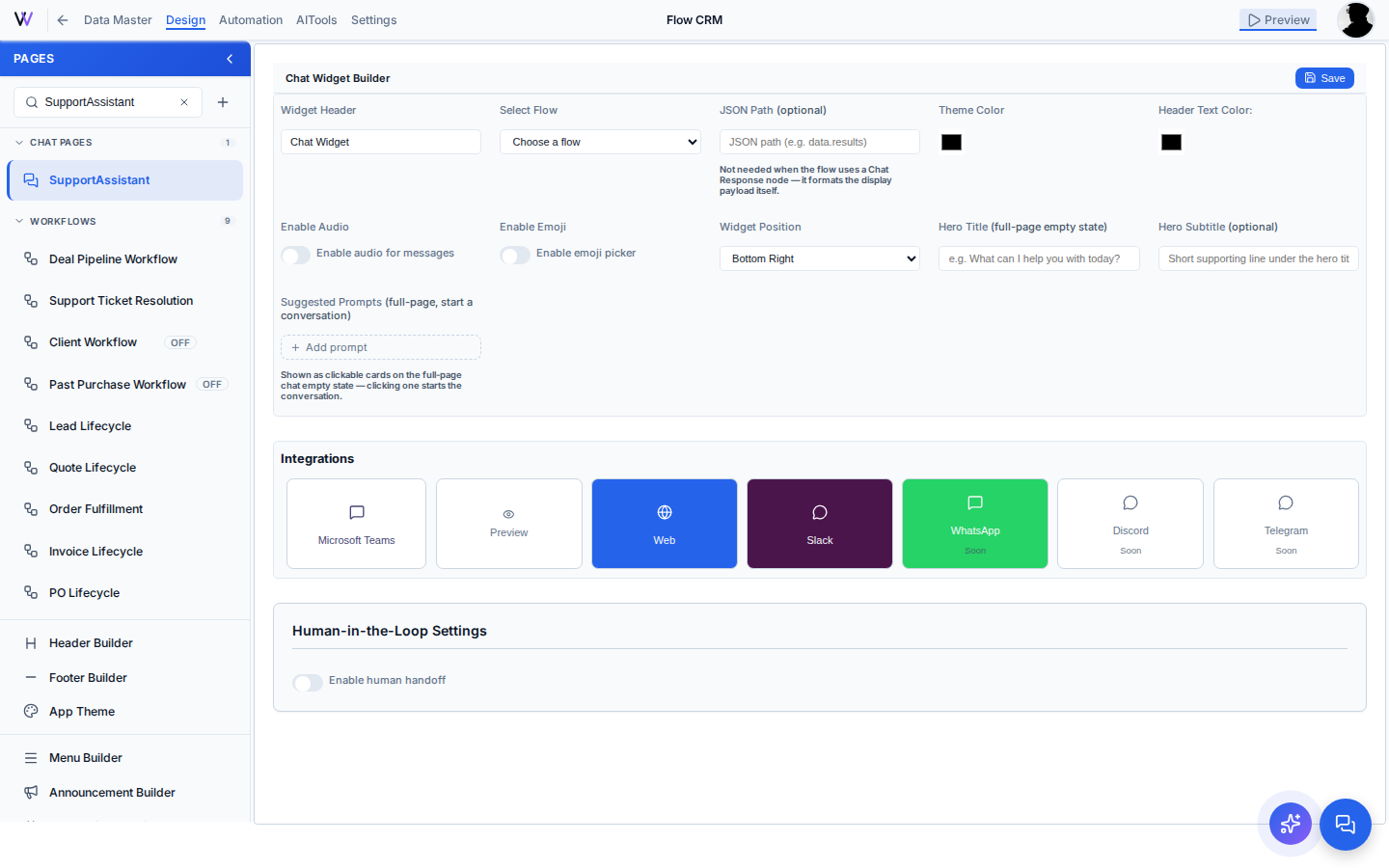
| Setting | What it does |
|---|---|
| Widget header | Title shown at the top of the chat. |
| Select flow | The backing flow that receives each message and produces the reply. Required for the chat to work. |
| JSON path | Optional path that extracts the reply text from the flow's structured output (e.g. data.results). Leave empty to use the flow's text output directly. |
| Theme color / header text color | Widget accent and header text colours. The default follows the app theme. |
| Enable audio | Lets users send voice messages (speech-to-text). |
| Enable emoji | Shows the emoji picker. |
| Widget position | bottom-right or bottom-left — for the floating widget. |
| Hero title / subtitle | Heading and supporting line on the empty state before the first message. |
| Suggested prompts | Clickable starter prompts on the empty state; clicking one sends that message. |
Channel integrations
The widget builder's Integrations section connects the same chat experience to external channels:
- Microsoft Teams — configure a Teams bot (app ID, app password, display name, public bot URL, optional Azure tenant ID, accent colour, icons, JWT verification) so Teams users chat with the same flow.
- Slack — pick a Slack managed connection and enable responses to DMs and @-mentions; the builder shows the Event Subscriptions URL to paste into your Slack app.
See Channels for the full inbound/outbound picture.
Embed on external sites
The builder can generate an embed code snippet — a small script tag that loads the chat widget on any website. Paste it into the external page's HTML; visitors chat with your flow without an account.
Human-in-the-loop
Enable human handoff in the widget settings and the chat gains a support path: when the AI can't help (or the user asks for a person), the conversation is routed to human agents staffed through a Chat Inbox page. This is what makes the chat inbox selectable in the inbox configuration — only chat widgets with human-in-loop enabled appear there.
Chat inbox pages
A Chat Inbox page (Create Page → Chat Inbox) is the agent-side desk for those conversations. Its configuration is deliberately small:
| Setting | What it does |
|---|---|
| Page name | Title shown at the top of the inbox. |
| Chat widget | Which chat widget's conversations this inbox handles. Only widgets with human-in-loop enabled are listed. |
| Human agents | The app's users allowed to read and reply to conversations — pick one or more from the user list. |
Using the inbox
- Conversation list — all open conversations for the bound widget, searchable by text, with unread indicators.
- Online/Offline toggle — each agent flips their own availability; the widget can show whether a human is reachable.
- Reply — type a message (attachments supported) and it goes straight to the end user, in the same thread the widget shows.
- Delete — remove a conversation from the inbox.
Conversation history persists across sessions, so an agent can pick up a thread days later.
The floating widget
To offer chat on every page without a dedicated chat page, open the Footer Builder and enable the chat widget, then pick which chat page's widget to show. It floats at the configured corner of the app shell and shares history with the full-page chat. See Navigation, header & footer.
Example: support assistant with escalation
- Create a flow:
start → AI agent node (answers FAQs from a RAG knowledge base) → chatresponse. - Create a Chat Page bound to that flow; enable human-in-loop and write a handoff message.
- Create a Chat Inbox page bound to that widget with your support team as human agents.
- Add both pages to the menu (inbox gated to agent roles) and enable the footer widget for everyone.
Plan note: chat pages and inboxes are available on all plans; AI agent nodes inside the backing flow follow the AI feature gates — see Plans & limits.