Docs
Environments
Dev, staging and production environments per app: variables, snapshots, promotion, comparison and rollback.
Environments let one app carry separate runtime configurations — typically dev, staging and prod — each with its own variables (API URLs, feature flags, thresholds). Manage them under the app's Environments settings.
What an environment is
- Name + key — display name ("Production") and a short key (
prod). - Variables — a key/value map (
API_URL,DEBUG_MODE…) that app logic and flows can reference instead of hard-coding per-environment values. In the flow designer and page builders, environment variables appear in the variable pickers alongside node outputs, so the same flow runs against staging or prod endpoints depending on the active environment. - Default flag — exactly one environment is the default; it's the one used when nothing else is specified.
Using environments
Everything environment-related lives in the app's Settings → Environments section — a designer-only surface (end users never see it; the running app simply resolves each viewer's stored or default environment automatically).
The section has three parts:
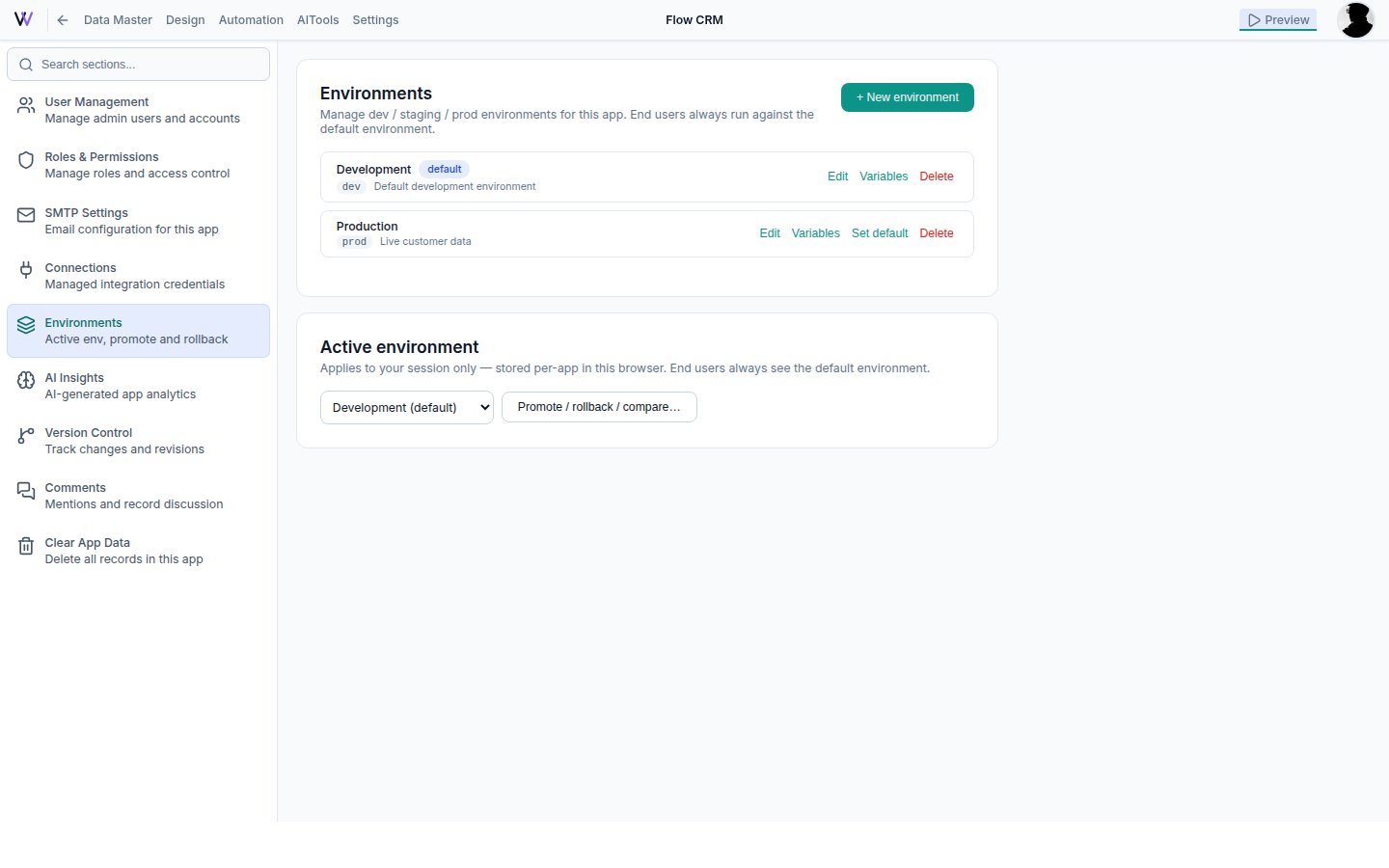
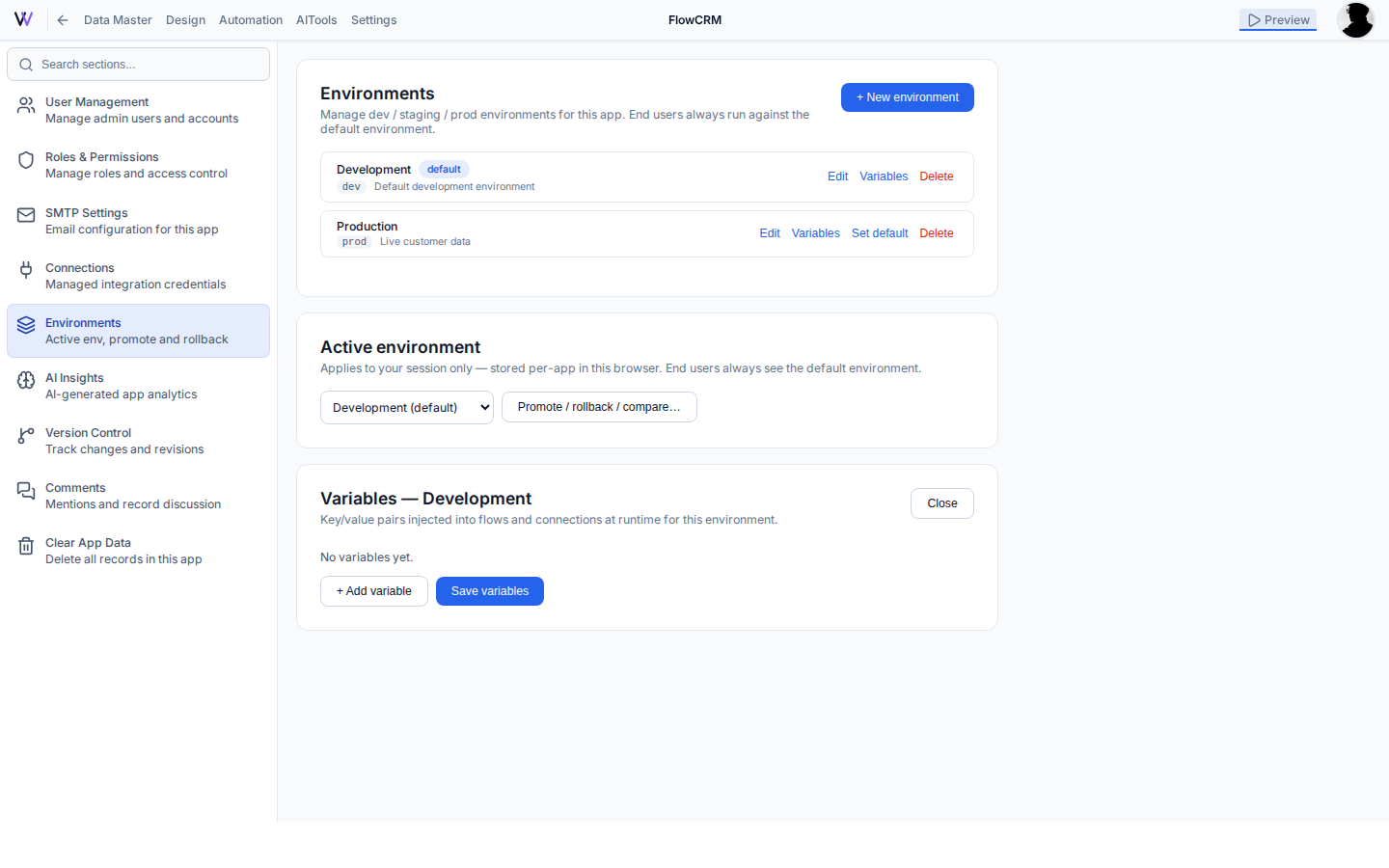
- Environments list — create an environment (name, key, optional description, default flag), then Edit, Variables, Set default or Delete per row. The Variables action opens a key/value table where you add, edit and remove variable pairs for that environment.
- Active environment — a session-only picker choosing which environment your own browser runs the app against. It's stored per app on that device, so you can test staging while your users stay on prod.
- Promote / rollback / compare… — opens the Environment Management panel for bulk operations.
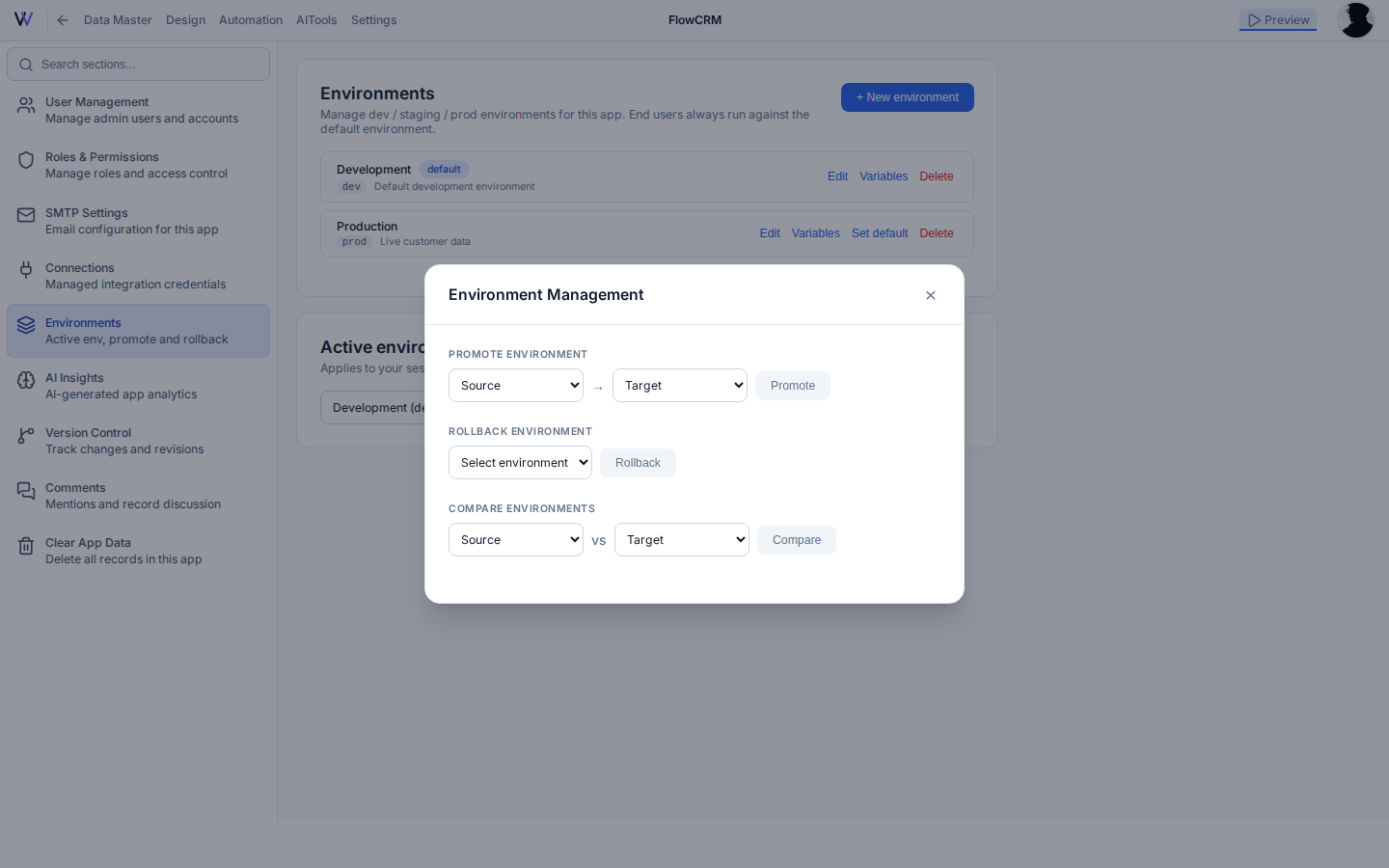
The panel offers three operations:
- Promote — copy one environment's configuration into another (e.g. staging → prod). A snapshot is taken automatically first so you can undo it.
- Rollback — restore an environment to its previous snapshot.
- Compare — diff two environments side by side (variables only in one side, modified values, identical keys) before promoting.
Each environment carries a name, key, description, a default flag and a key/value variables map. Exactly one environment is the default — the one used when nothing else is specified. Variable edits apply to that environment only. Deleting an environment asks for confirmation first.
Typical use
| Scenario | Setup |
|---|---|
| Test changes safely | Build in dev, promote to staging for review, then prod |
| Different endpoints | Each env's variables point at its own API host, payment keys (via connections), or feature toggles |
| Safe rollout | Snapshot before promoting; rollback instantly if prod misbehaves |
| Client isolation | Per-client variable sets if you run separate environment instances |
Plan note: environments are a gated feature — available on Pro and Enterprise plans (see Plans & limits).
Related: app-wide version control (branches/commits) is a separate feature under App settings; environments carry runtime variables and data-source config.