Docs
App settings
The settings surface of an app: version control, locales, announcements, security, SMTP, print templates, comments and audit.
Beyond pages and data, every app has a settings surface covering versioning, localization, announcements, security, integrations and audit. This page maps what's there and when you'd use it.
Version control
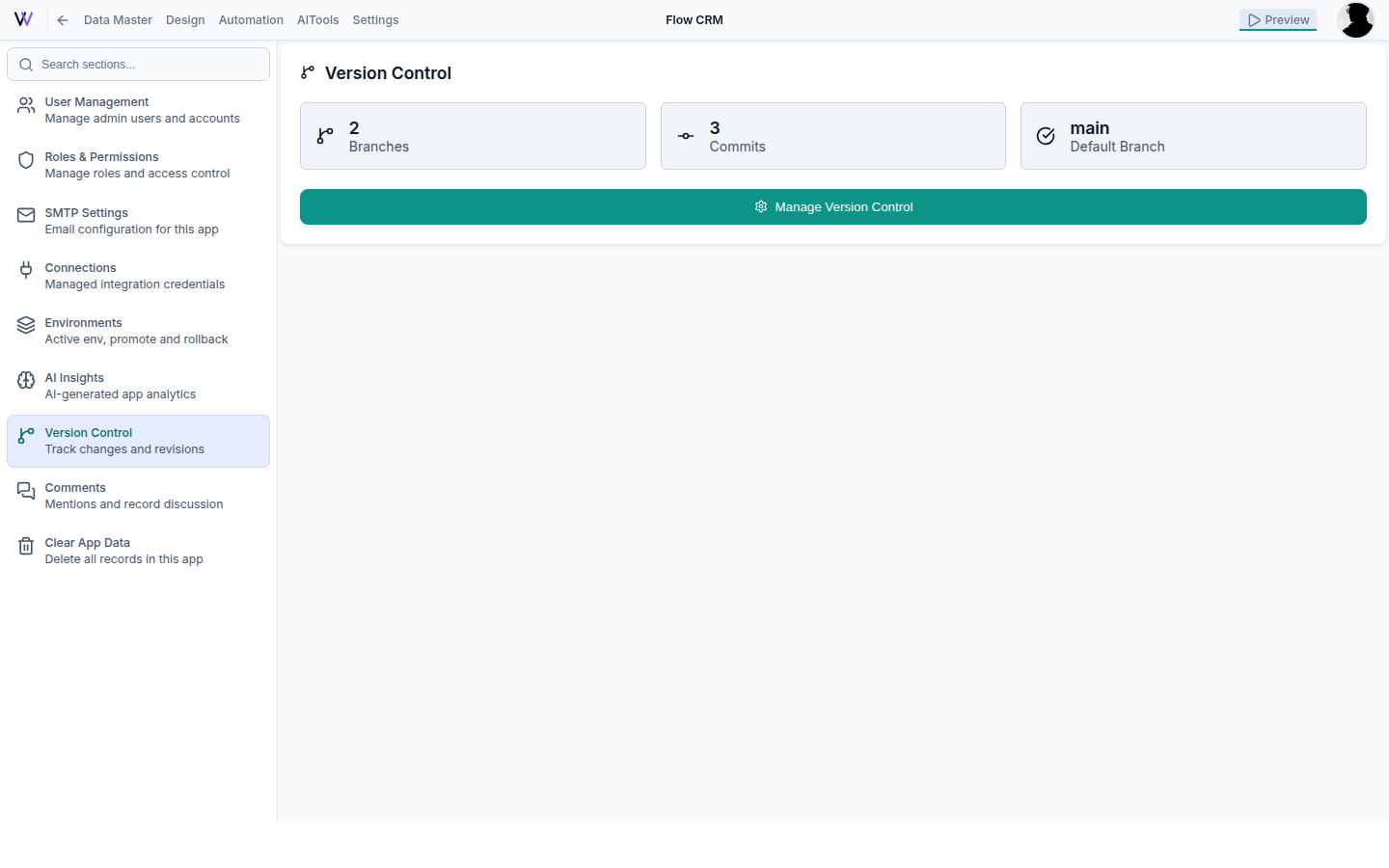
Git-like control for app structure: create branches, commit snapshots of the whole app, review history, and merge branches. Use it to experiment safely — branch a redesign, commit stable states, merge when ready. (Pro+ on managed cloud.)
Three tools handle the details:
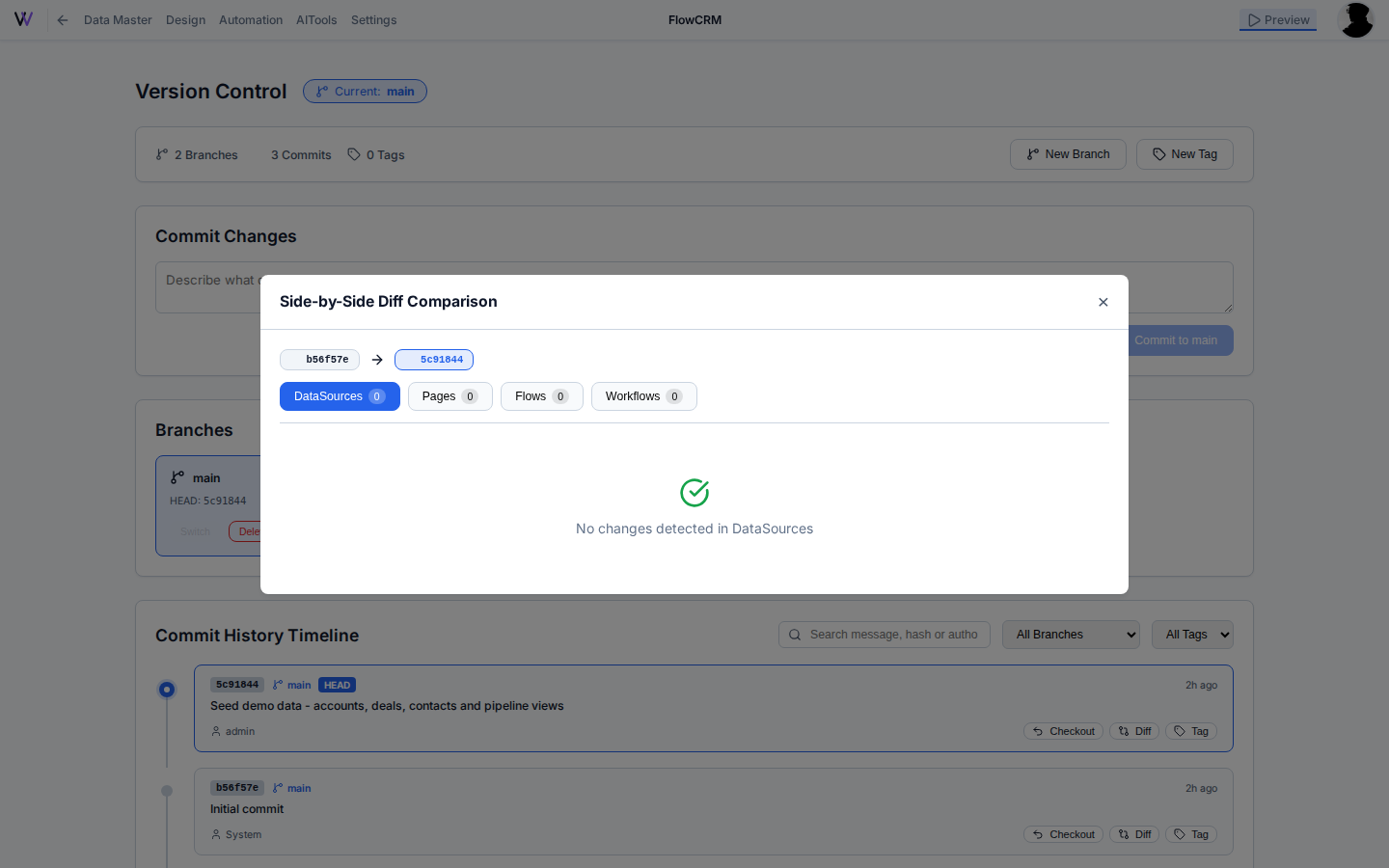
- Diff viewer — before merging, compare branches grouped by component type (DataSources, Pages, Flows, Workflows), each split into Added / Removed / Modified.
- Merge conflict resolver — when both branches changed the same component, the resolver lists every conflict; for each one you pick Accept Source or Keep Target, with both versions shown for comparison, then Complete Merge.
- Rollback preview — rolling back to an earlier commit first shows a preview: the commit message, per-type counts of what will change, and a warning banner before you confirm.
Locales & translations
App locales add languages: create a locale (e.g. ar, fr), mark one default, and fill translation key/value pairs. HTML pages can carry per-language templates. Users pick their preferred locale in their profile. New locales beyond the first are plan-gated (Starter+).
Announcements
Time-bound banners or scrolling marquees at the top of the app — maintenance notices, launches, alerts. Set text, colors, start/end dates, marquee vs. static, auto-hide duration, and enable/disable.
Appearance
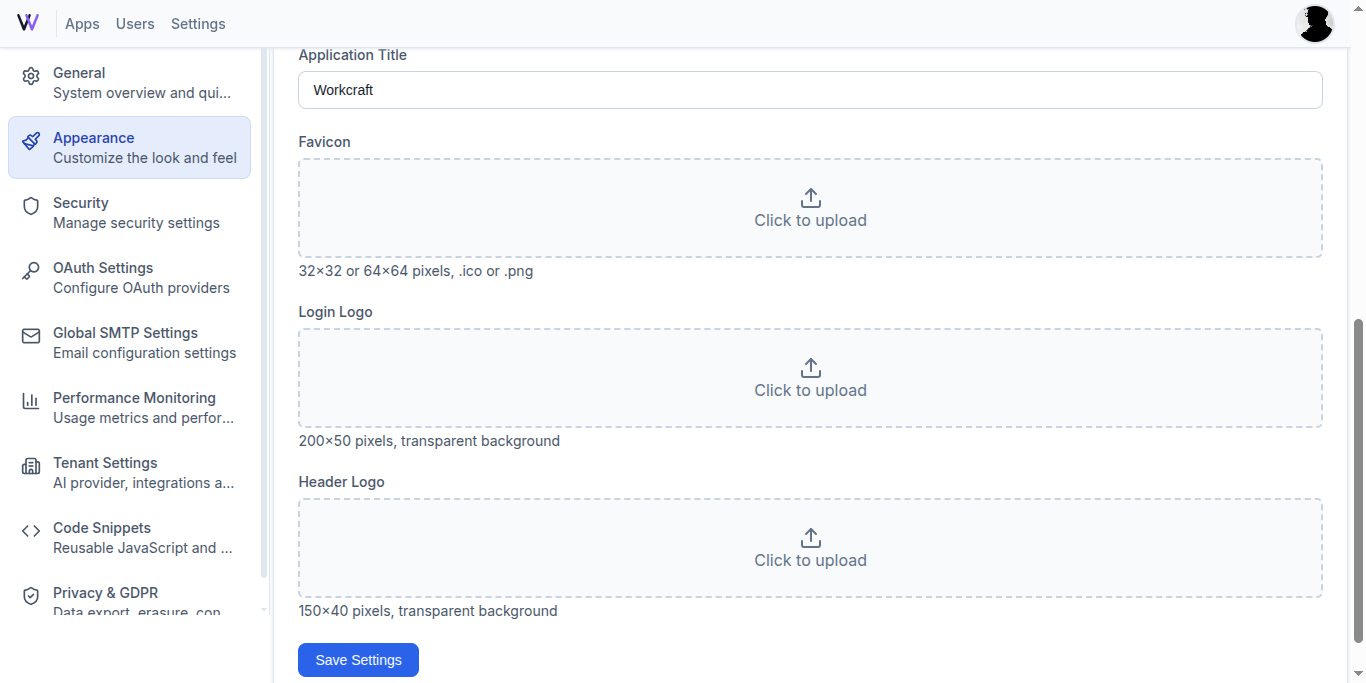
Per-user UI preferences: theme (light/dark), compact mode, sidebar position, font size/family, plus app-level branding — app title, favicon, login/header logos, primary color. Branding controls are plan-gated (Pro+).
Login page studio
Customize the tenant's sign-in screen: logo (letter mark, image or none), background (color, gradient, grid, image), brand colors, title/tagline/subtitle, theme, fonts, corner radius, card width, layout (centered/split/open), which fields and buttons show (password toggle, remember-me, forgot password, sign-up, workspace registration, OAuth buttons), custom CSS, and footer text. Preview live in the studio before saving.
Security settings
- Password policy — min length, require uppercase/numbers/special chars.
- Sessions — timeout, max failed logins → lockout duration.
- Two-factor — TOTP-based 2FA toggle.
- SSO / SAML / SCIM — enterprise identity (Enterprise plan): OIDC or SAML login per tenant, SCIM user provisioning API.
Email (SMTP)
App-level SMTP settings power the email flow node and notification emails: host, port, username, password, encryption. Tenants can also carry default SMTP in tenant settings. Mail templates provide reusable subject/body pairs with {{variable}} interpolation for notifications.
Record comments & mentions
Every record's History tab doubles as a comment thread. Users comment with @mentions (autocomplete over app participants, or all tenant users if enabled in app Settings → Comments); each mention fires a notification with a deep link back to the record. Comments support one-level replies, edit/delete by author, and appear in the same chronological feed as field/workflow history.
Print templates
Designer-authored HTML templates with {{field}} tokens, bound to a form page. Records get a print view (/print/{recordId}) — from the record detail action bar or the form's edit mode — with typed values resolved (dates formatted, refs shown as labels, users as names), theme colors injected, and hidden/role-gated fields stripped. Toggle print per form ("Enable Print", "Print Roles").
Audit & history
- DataStore history — every record change (who, when, old→new values) on the record's History tab.
- Workflow history — stage transitions and task events in the same timeline.
- Flow audit log — flow executions with per-node results (plan-gated reads on cloud).
- Login history — per-user sign-in records (IP, device, time).
- GDPR/privacy tools — data export, erasure (pseudonymization), consent records, retention policies, breach log, privacy documents — under tenant privacy settings (account admins).
AI Insights
Apps created with AI app generation get an extra settings section, AI Insights, that grades and verifies what the AI built. It's also reachable directly at /ai/insights for the currently open app. Use Refresh Data to re-run the analysis after you've made changes.
The Overview tab shows three score cards:
- Quality Score — an overall percentage plus a letter grade for application quality, from an automated QA report.
- Verification Status — pass/fail result of component validation, with counts of issues and warnings. When issues exist, a Fix Issues button runs the AI auto-fix.
- Completeness — how much of the application's component coverage is in place, as a progress bar.
Below the cards, Improvement Recommendations lists actionable suggestions grouped by category. The Components tab breaks the same verification down per component: each expandable card shows its pass/fail status, then the exact issues, warnings and successes behind it, plus per-component metrics. Fix Issues applies AI-suggested corrections automatically and reports what was fixed and what needs a manual touch — anything it couldn't fix is left for you in the builder.
Also in settings
- Code snippets — reusable JS/CSS snippets with parameters and version history.
- Knowledge base — documents for RAG (see AI agents & tools).
- General settings — default language, timezone, date format, notification toggles.
- Connections — managed credentials (see Data & connections).
- Environments — dev/staging/prod variable sets, a session-scoped active-environment picker, and promote/rollback/compare tools (see Environments).
- AI Insights — quality score, verification and completeness for AI-generated apps (see AI Insights).
- Clear App Data — permanently delete all records in the app (optionally including uploaded files). Dangerous and irreversible — the dialog spells out exactly what will be deleted; use it for a clean slate, not routine cleanup.