Docs
Users & roles
Platform user types, per-app roles and permissions, inviting users, authentication options and access control.
Workcraft has two permission layers: platform user types (what you can do across the whole workspace) and app roles (what you can do inside one app).
Platform user types
| Type | Can do |
|---|---|
| Master / admin | Everything — tenant admin: users, settings, all apps, plan/licensing |
| Creator (appcreator) | Build and publish apps, design workflows, manage connections — but not tenant administration |
| App user | Use published apps only — fill forms, work tasks, no builders |
User type is set at account creation and decides which builders and admin screens appear. For workflow rights specifically: account admins can act on any task; creators design/publish/monitor but act only on assigned tasks; app users act only when assigned.
App roles
Inside an app, roles are named permission sets — typically combinations of read/write/delete/admin — assigned per user per app. They gate:
- Menu items and pages (hide "Admin" pages from employees)
- Form fields (visibility/edit roles per element)
- List columns and row actions
- Workflow transitions and stage actions
- Record comments — who can view/post (mentions notify the mentioned user; see App settings → Record comments & mentions)
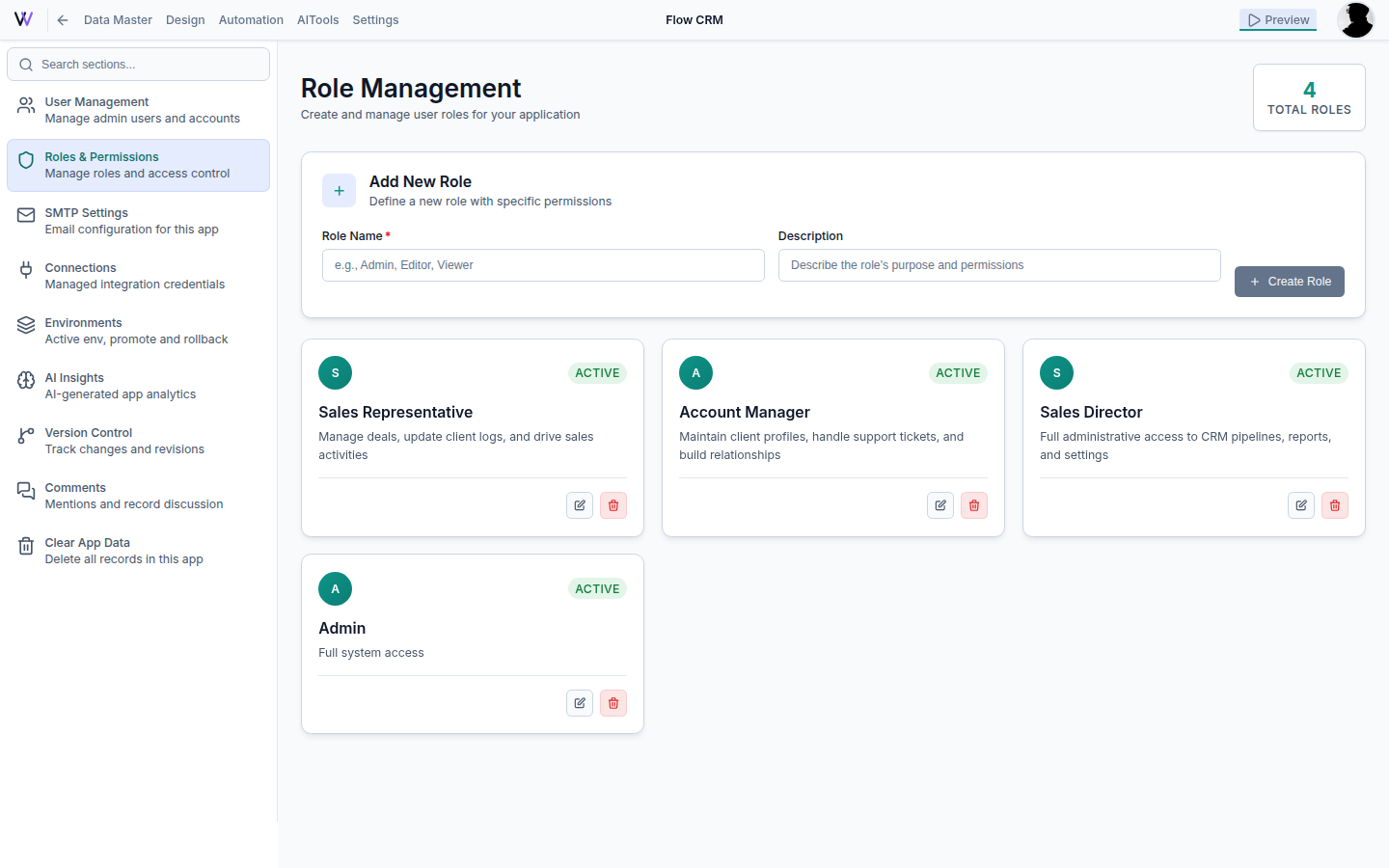
Create roles in the app's role builder; a typical set is Admin, Manager, Editor, Viewer plus domain roles (HR Manager, Employee…).
Managing users
- Invite — add users with email/username, set their platform user type, assign them to apps and app roles. Creator users can now be assigned to apps as well (not just admins).
- Import — bulk user import for larger teams.
- App access — users only see apps they're assigned to; unpublished apps are invisible to app users.
- Lockout — failed-login lockouts and admin unlock; login history tracks sign-ins (IP, device, time).
Authentication
- Password — policy configurable per workspace (min length, session timeout, max attempts → lockout) under Settings → Security.
- OAuth — Google and Microsoft sign-in buttons appear on the login screen once a provider is configured.
- SSO / SAML / SCIM — enterprise single sign-on via OIDC or SAML, plus SCIM user provisioning — Enterprise plan (see Plans & limits). Full setup walkthrough: Security & access.
- Two-factor (MFA) — any user can enrol an authenticator app from their profile and save one-time recovery codes; workspaces can require it for everyone.
- Custom login page — white-label the sign-in screen per tenant (see Branding & multi-tenancy).
Setting up MFA
Profile → Two-factor authentication → scan the QR code with an authenticator app → confirm a code → save the recovery codes. If your workspace requires MFA you'll see a required by workspace notice until enrolment is complete.
Access control in practice
| You want… | Do this |
|---|---|
| Only managers approve | Workflow stage assignees = Manager role; transition "who can perform" = Manager |
| Employees can't see salary | Field visibility roles on the form element |
| App users can't open the admin list | Menu item role-gated to Admin |
| Contractors see only their records | Role-scoped pages + record ownership via User fields |
| Builders can't touch production config | Separate environments + publish/version control |
Backend enforcement is the source of truth — hidden UI is convenience, not security. Direct API calls get the same checks.