Docs
Data & connections
Native data tables and column types, MySQL/PostgreSQL sources, managed connections, shared tenant datasets, imports and exports.
Workcraft apps are data-driven. This page covers where data lives — native data tables and the records forms produce — and how apps connect to external databases and APIs.
Two kinds of data
| Data table | Form records (DataStore) | |
|---|---|---|
| What it is | A defined table: named columns with types, plus seed rows | Rows created when users submit forms |
| Good for | Lookup lists, reference data, imported datasets, config | Transactions and entities users create (orders, tickets, employees) |
| Read by | Dropdowns, embedded tables, grids, dashboards, flows | List pages, record views, kanban, calendar, dashboards, workflows, My Tasks |
| Written by | Table editor, imports, flows | Form submissions (and flows), with full change history |
A typical app uses both: entity tables define the shape, forms collect records, and lookup tables feed dropdowns.
Data tables
Create tables under the app's Data section. Each table has a name (PascalCase plural — Customers, LeaveRequests) and typed columns.
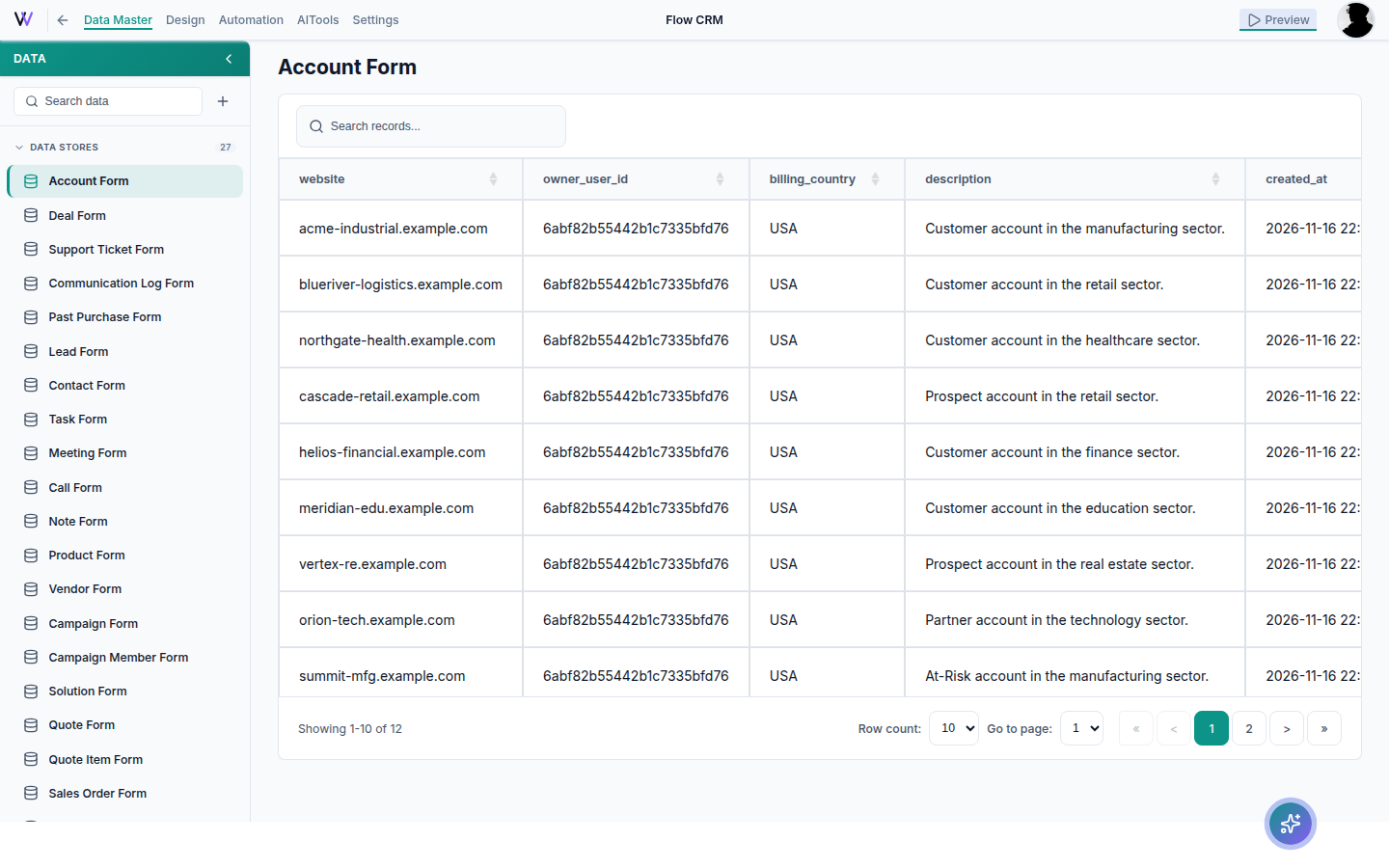
Column types
| Type | Stores | Notes |
|---|---|---|
| Text | Strings | Also the base for Email/Phone/URL validation variants |
| Number | Numeric values | Currency adds a currency code |
| Date | Dates (and date-times) | Format d-m-y family |
| Select | A fixed option list | Options defined on the column |
| Ref | A link to another table's row | Picks a target table + label/value columns; optional refOnDelete: RESTRICT (default), CASCADE or SET_NULL |
| User | A platform user | System users or a people table you define |
| AutoId | Auto-generated record number | Strategy uuid/nanoid, optional prefix and length — renders as a record-number field on forms |
| Boolean | True/false | Checkbox on forms |
| Attachment | File references | Pairs with File upload |
| Formula | Computed value | Expression over other columns |
Each column can also be marked required (not null) and given a default value — used when a new record is created without that field. Set these in the column editor alongside the type.
Modeling rules that matter
- One entity per table. Don't mix an employee's leave data into the Employees table — transactions get their own tables.
- AutoId for identity, Ref for relationships. A customer's own ID is AutoId; an order's
customerIdis a Ref to Customers. - Lookup tables are single-purpose. A "Project Status" table holds only status options — entity fields live on the entity's table.
- Never build user tables. Workcraft has built-in users; reference them with a User column.
Shared (tenant) datasets
A table can be marked shared: it becomes readable by every app in your workspace (tenant) — ideal for Departments, Countries or a Products catalog. Tenant admins control sharing and which apps may edit; everyone else is read-only. Deleting a shared row enforces the same refOnDelete rules across all apps.
External data sources
The New data source dialog (app Data section) offers three types:
| Type | What it connects |
|---|---|
| In-Built Table | A table managed inside Workcraft — the native data tables described above |
| MySQL | An external MySQL database — host, port, database, credentials |
| PostgreSQL | An external PostgreSQL database — host, port, database, credentials (schema defaults to public) |
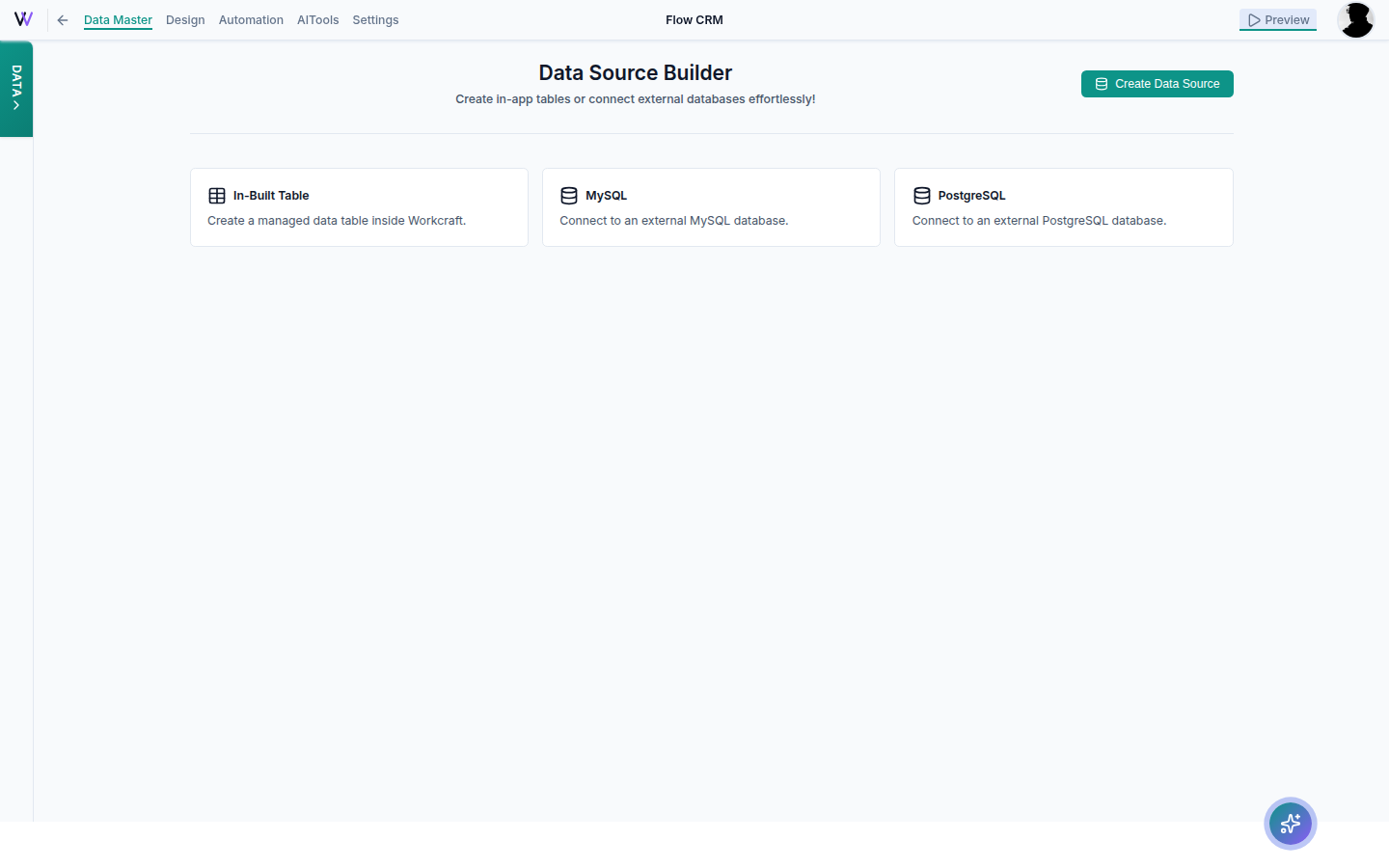
For MySQL and PostgreSQL you can enter connection details directly or pick a saved credential, and Test connection verifies before you save. External sources appear in the app's Data section alongside native tables.
Every other service — MongoDB, SQL Server, Oracle, Elasticsearch, Redis, REST APIs, Google Sheets, Airtable, Salesforce, Slack and the rest of the provider list — is reached through managed connections inside automation flows: a flow node calls the service with a stored connection and writes the result into a data table or form records your pages then display.
Managed connections
Connections (App Settings → Connections) store credentials once — API keys, OAuth2, basic auth, database logins — encrypted at rest, and are referenced by flows, data sources and nodes instead of pasting secrets everywhere.
- Open the app's Settings → Connections → New connection.
- Pick a provider and fill the guided form — non-secret fields in config, secrets encrypted. The form adapts to the provider: OAuth providers get an Authorize button that runs the consent flow; database providers take a connection URL; API-key providers take the key fields.
- Use Test to verify; edit or delete connections from the same list.
- Reference the connection in flow nodes via the connection picker — nodes then get credentials injected automatically.
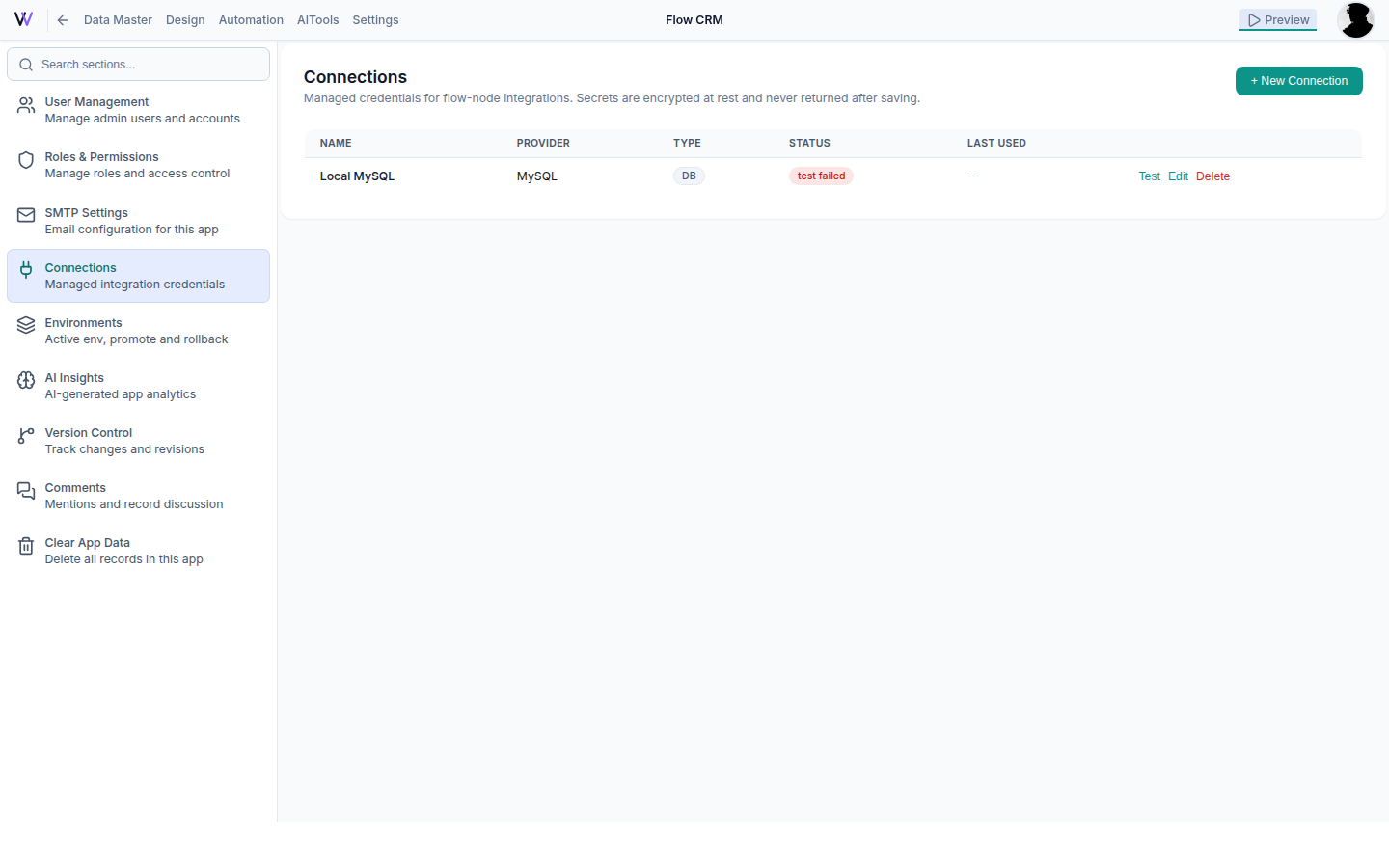
Secrets are write-only: after saving, the API returns masks, never values. Expiring OAuth tokens refresh automatically.
Connection providers
The provider picker offers these families — pick the one your integration needs; flow nodes and data sources then reference it by name.
| Family | Providers | Auth style |
|---|---|---|
| Databases | MySQL, PostgreSQL, MongoDB, SQL Server, Oracle, Elasticsearch, Redis | Connection URL / credentials |
| Google APIs (Sheets, Drive, Calendar…), Gmail | OAuth2 consent | |
| Microsoft | Microsoft 365 / Graph (Outlook, OneDrive, SharePoint, Excel, Teams) | OAuth2 consent |
| Communication | Slack, Twilio, SendGrid, IMAP (inbound email polling) | API key / app credentials |
| CRM & support | Salesforce, HubSpot, Jira, Zendesk, ServiceNow | OAuth2 or API token / basic |
| ERP & industry | SAP (OData), Workday, NetSuite | Basic / API key |
| Payments & documents | Stripe, Razorpay, DocuSign | API key / OAuth2 |
| Dev & data | GitHub, AWS, Airtable, Notion, Firecrawl, Anthropic | API key / token |
| Generic | HTTP / Webhook, Generic REST | API key or none — for any REST API |
Provider coverage gates apply per plan — enterprise connectors unlock on higher tiers; see Plans & limits.
Scheduled imports & export templates
- Scheduled imports pull a CSV/XLSX from a URL into a data table on a cron schedule, with column mappings and optional fail-fast. Set one up from the table's import options (or the common Scheduled Imports modal in the Data view); each job shows last-run status and counts against your plan's schedule quota.
- Export templates save a column selection + filters as a named CSV/XLSX export for a table — reuse it instead of rebuilding the export each time.
- Manual CSV import — upload a CSV/XLSX file to any data table; map columns to table columns and review before committing (progress modal shows row counts).
- App export/import (whole-app JSON) carries tables, pages, flows, roles and settings to another app or environment — IDs are remapped automatically.
Tips
- Start with lookup tables (Status, Priority, Category) before entity tables — forms reference them immediately.
- Give Ref columns an explicit delete behavior; the default RESTRICT prevents orphaned links.
- Use the DataGrid/Table field elements to embed read-only or editable slices of other tables inside a form.
- Flows can read/write both data tables (
datatablenode) and form records (datastorenode) — see Automation flows.