Blog · 2026-11-25
One App, Seven Backends: Wiring Postgres, MongoDB, REST, Sheets, and Airtable into a Single Workcraft App
Seven external backends in one app — and the two-layer model (named data sources vs managed connections) that keeps credentials out of your flows.
Low-code demos always show the easy half: a form bound to the platform's own table. Real work starts when the data already lives somewhere else — a Postgres instance owned by another team, a Mongo cluster, a REST API you don't control, a spreadsheet someone refuses to give up. This tutorial builds one app against seven of those, and along the way teaches the one thing that makes Workcraft's data model click: there are two separate layers, and they are not the same feature.
The mental model: Data Sources vs Connections
Workcraft splits "external data" into two stores, and mixing them up is the #1 source of confusion:
- Data Sources are named, per-app data targets. Six types exist: REST, SQL Server, MySQL, PostgreSQL, MongoDB, and the built-in table. A SQL data source stores a query and a credential reference; a REST data source stores a URL, method, headers, and body template. Data sources feed pages and can also be referenced by name inside flow database nodes.
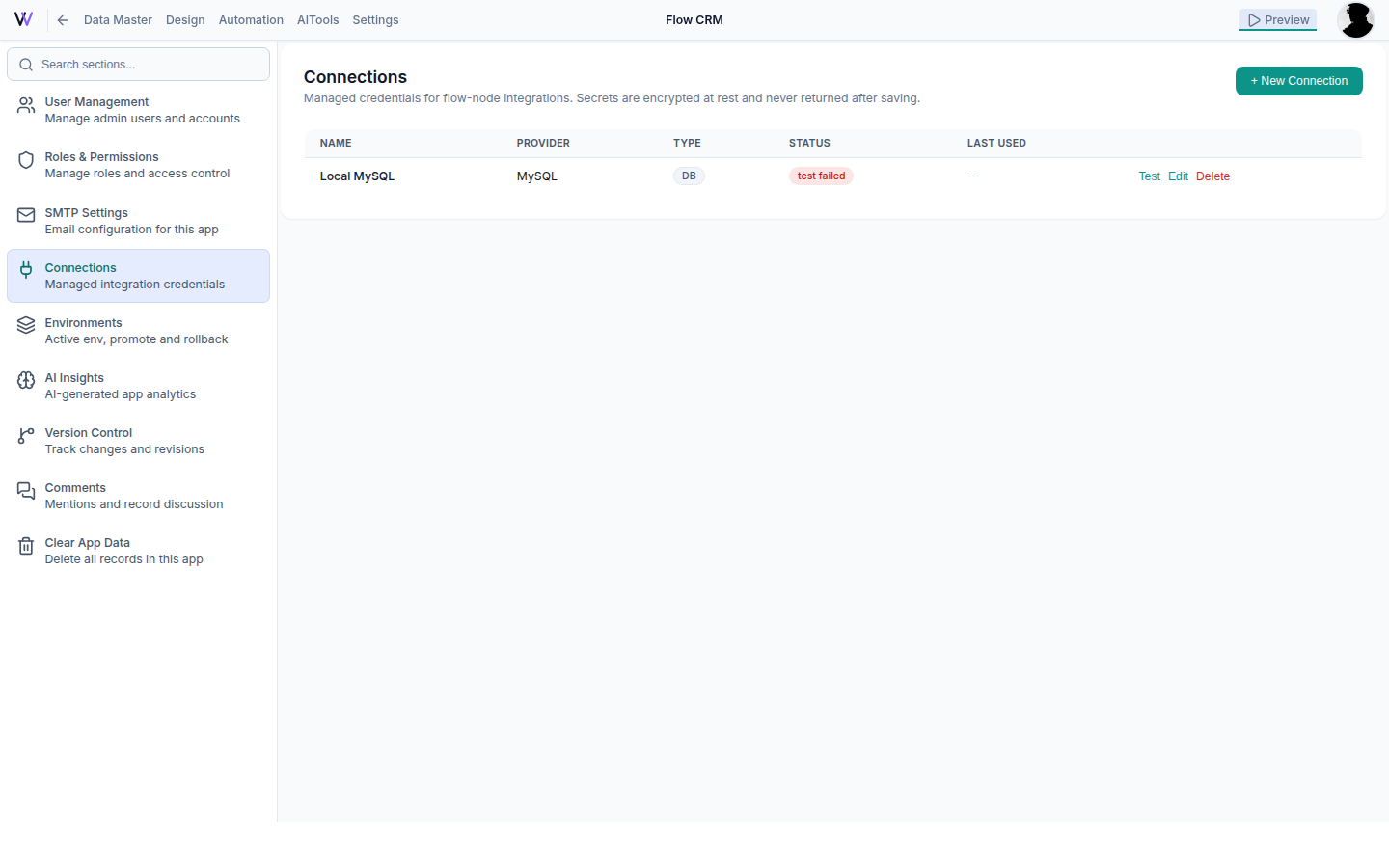
- Connections are managed credentials for flow nodes — roughly 35 providers across four auth types: API key, OAuth2, basic auth, and database. Secrets are AES-256-GCM-encrypted, masked in every response the platform gives back, and injected into a node's config only at execution time.
Rule of thumb: a data source answers "where does this page's data come from," a connection answers "what credentials does this flow node use." You'll use both in this tutorial.
Prerequisites: a Workcraft tenant, an app to work in, and at least one real external system you can reach. Examples below use Postgres; substitute freely.
Step 1 — Create a managed connection for Postgres
In your app's settings, open Connections and click New connection. The provider picker offers ~35 entries; the database-type ones come with URL templates:
mysql→mysql://user:password@host:3306/dbpostgres→postgresql://user:password@host:5432/dbmongodb→mongodb://user:password@host:27017/dbmssql→sqlserver://user:password@host:1433/dboracle→oracle://user:password@host:1521/service
Pick PostgreSQL, paste your URL, and hit Test. For database-type connections the test isn't a mock — the platform opens a real connection with a short login timeout (MongoDB lists databases, Redis pings, Elasticsearch fetches its base URL). The result — status, message, timestamp — is stored on the connection, so a green check is evidence, not vibes.
What gets stored: your URL lands in the connection's encrypted secret slot. The platform never returns it — reads come back masked. On update, resubmitting the mask or leaving the field untouched keeps the stored value; an explicit empty value clears it.
Step 2 — Run a query from a flow
In the Flow Designer, drop a Postgres node. Point it at the connection you just made via the connection picker, and write your query in the node's template, e.g. SELECT id, name, email FROM customers WHERE region = 'EU'. At execution the platform decrypts the connection and injects the material into the node's config in memory — nothing sensitive sits in your flow definition.
That's backend #1. Repeat for MySQL and MongoDB nodes the same way — they're all first-class node types, all connection-aware. Backends #2 and #3.
Step 3 — Add a named SQL data source (optional but powerful)
Connections authenticate nodes; data sources give a query a name. In the app's data panel, Add data source → pick MySQL or PostgreSQL. Give it a name like customers-eu, link it to a credential (the same managed connection from Step 1), and store a default query.
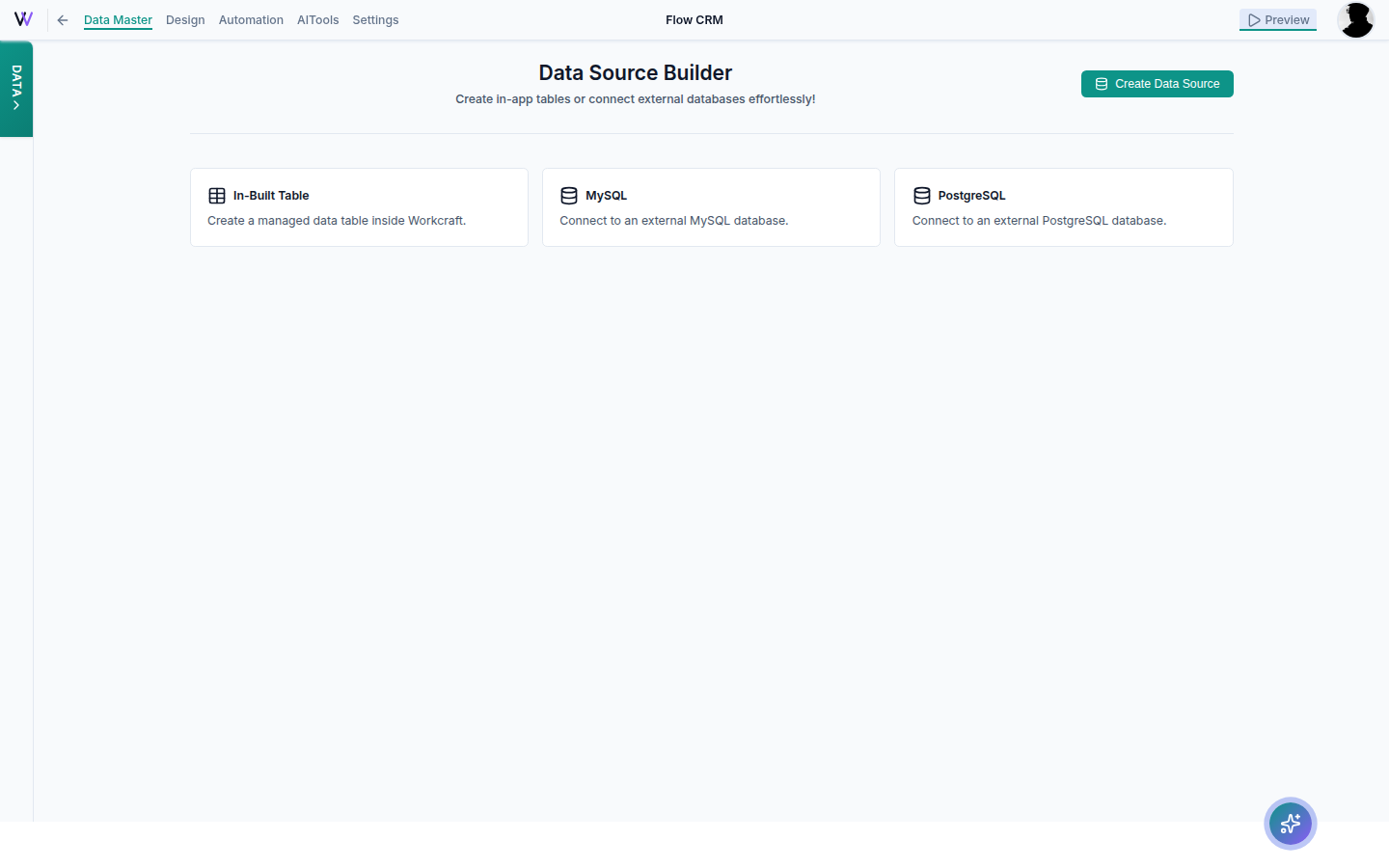
Now any SQL flow node can reference the source by name instead of carrying its own URL: the platform resolves name → data source → credential → connection string → stored query. Rename targets once, reuse everywhere. (SQL Server sources still carry inline fields — server, port, database, encrypt flag — so prefer managed connections where the option exists.)
Step 4 — Pull a REST API into a page
Add a REST data source: URL, method, query params, headers, request body (JSON or form-urlencoded are both first-class). When a component needs its data, the call goes through the Workcraft backend — not from the browser. Two consequences worth knowing:
- Your API sees the Workcraft server's IP, and headers carrying secrets stay server-side.
- Every request passes an SSRF guard that refuses internal targets. Node URLs are template-resolved and can carry caller input — the guard is what stops a parameter from pointing a request at your cloud metadata endpoint. If a REST source ever "fails to reach" an obviously valid URL, check whether it resolves to a private address first.
Backend #4.
Step 5 — Google Sheets over OAuth2
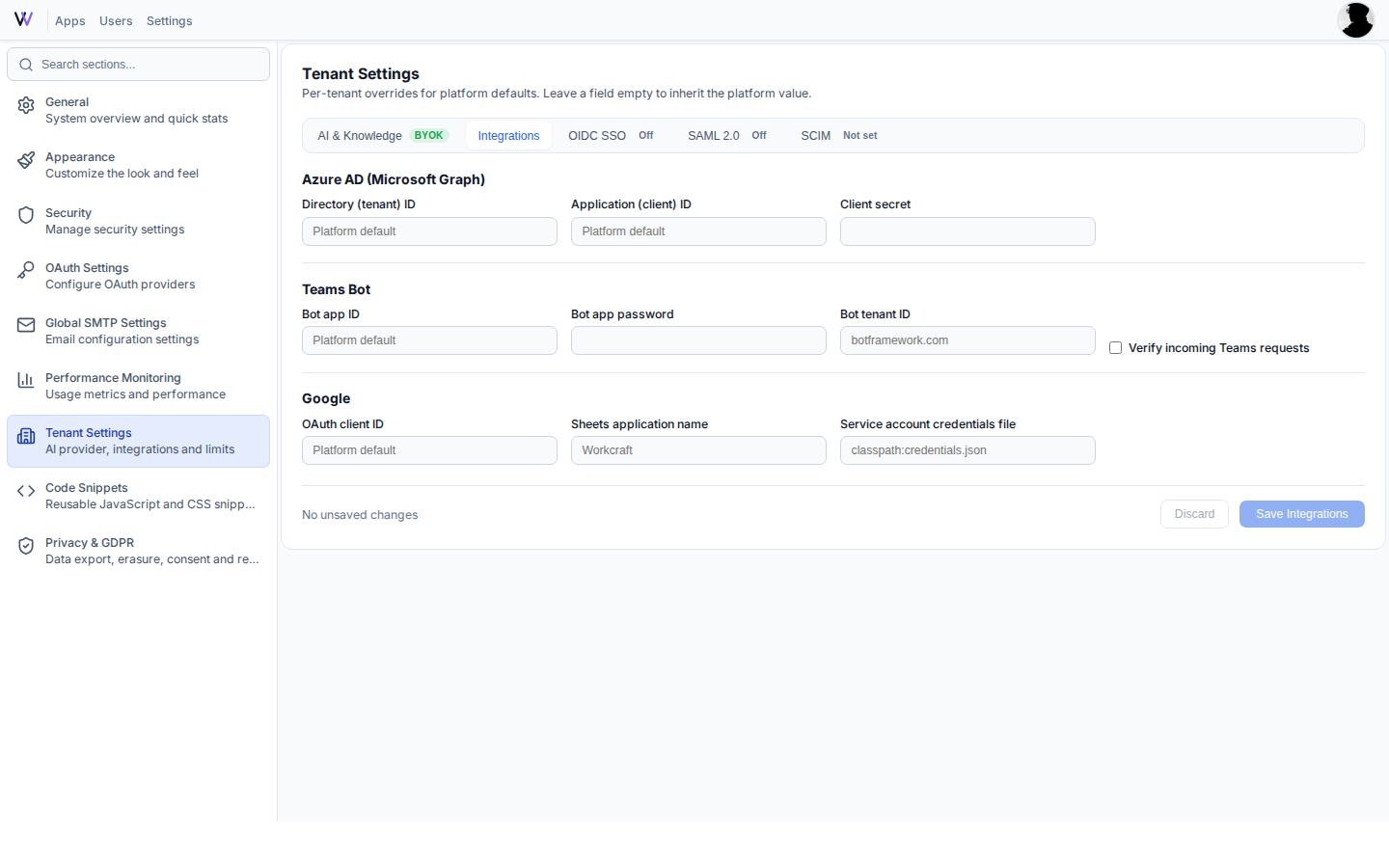
Sheets is where the OAuth2 connection type earns its keep. Create a connection with provider Google APIs — the form pre-fills Google's authorization endpoints. Clicking authorize opens Google's consent in a popup; the redirect back is protected by a single-use state token that expires after ten minutes.
Two details the spec doesn't tell you: a scheduled refresh job re-authorizes tokens proactively — any OAuth2 connection within a few minutes of expiry gets refreshed, so your flows don't die at midnight when an access token ages out. And the Google Sheets node is read and write: read, append, update, clear, batch operations, and a custom-operation escape hatch. Backend #5.
Step 6 — Airtable over API key
Provider airtable, type API key, one secret slot. The Airtable flow node then fans out into a full surface — list bases, create/get/list/update/delete records, create multiple records, create a comment, create a field, even create a table. That's not a read-only mirror; a flow can provision a new Airtable table as part of an onboarding run. Backend #6.
Step 7 — The backend that isn't external: the built-in table
The seventh "backend" is Workcraft's own. An In-Built Table stores headers, rows, and custom column definitions — and the column types are where it gets interesting:
- Ref — a lookup into another table: pick the referenced table, a label column for display, a value column for storage, and an on-delete rule for referential integrity:
RESTRICT(block the delete),CASCADE(delete referencing rows), orSET_NULL(clear the cell). - User — populate from system users or from another table's column.
- AutoId — UUID or nanoid with configurable length, optional prefix like
ORD_, read-only flag. - Formula — an expression evaluated on save/display.
- Currency — ISO 4217 code or symbol.
- Required — enforced in forms.
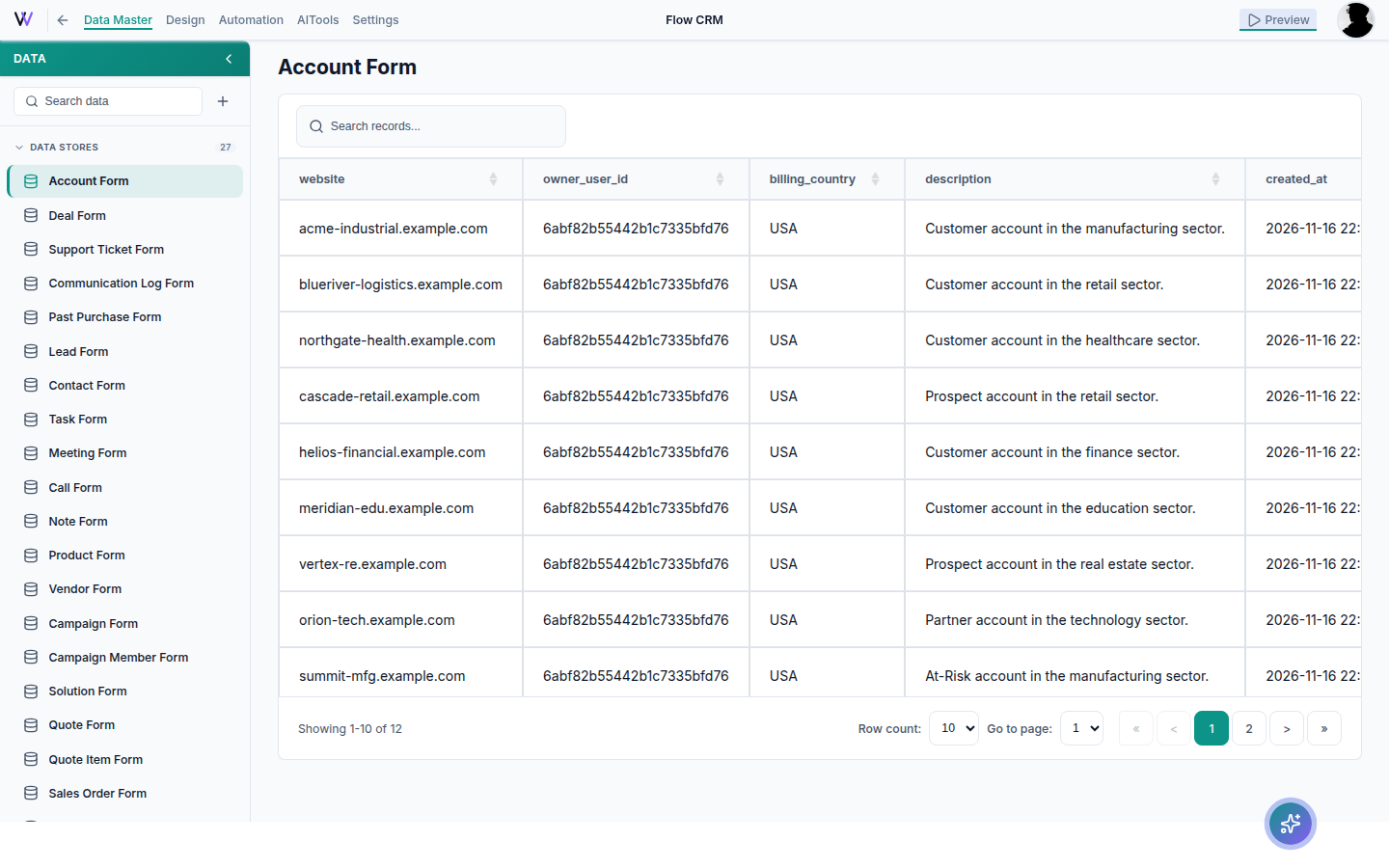
Records created through app forms land in the app's datastore, and the table view backfills from it — so a built-in table is both a design artifact and a live view over your app's records.
Step 8 — Share it across the tenant
Every data source defaults to app scope. Flip it to tenant scope and any app in the tenant can read it, with an editor allow-list controlling which other apps may write. Cross-environment promotion keeps references working via a stable logical identity that survives cloning — so your customers-eu source in dev and prod are the "same" source.
Where the tutorial ends
Honest edges:
- Exact click-paths vary by release. Menu labels and wizard order come from the product's current UI; your build may arrange them slightly differently.
- Google Sheets exists as a data-source type in name only. Sheets access today goes through connections + flow nodes; the creation UI doesn't offer a Sheets-flavored named source.
- MongoDB named sources are thin. The live Mongo path is the
mongoflow node plus a connection — the named-source surface for it is minimal. - Plan limits apply. Connection counts are capped per plan, and enterprise providers sit behind their own entitlement — check plans and limits for your tier's numbers.
- Inline secrets on nodes are deprecated. Some older nodes still show inline credential fields; managed connections are the supported path.
Deeper reference: data and connections · automation flows · environments.
Want to try it? Get a demo workspace or read the docs.